Decent Espresso DE1 Manual

Introduction
This MANUAL covers our DE1 line of espresso machine, when used with the de1app (sometimes called the Decent app).
However: in 2026 several things occurred:
You should keep in mind:
It's mostly the case that community-created programs do not have the entire feature set of de1app/Decaid. That's because they tend to focus on the core experience of making drinks and editing profiles. Some people thus choose to use two programs.
1. First steps on your DE1
1.1. Read this first (and watch the videos)
If you just received your machine, we recommend that you start simple and first get acquainted with the app and everything involved with making coffee on a Decent. We recommend the Quickstart Guide to get you started, and in addition to that, the two books Everybody Espresso! and Everybody Latte Arts! with very in-depth barista knowledge.
Back to machine specifics.
Start with the basics, geek out on the advanced stuff later.
So here's the type of question we receive frequently and our reply and the videos we would like you to watch first below:
Dan wrote:
What would have (and would still be) extremely useful is a tutorial/reference for each of the main profiles.
The kind of content I think would be useful:
What you're asking for is reasonable. But making good coffee is a skill, and requires a bit of learning, and there are very few "rules" that hold definitely true everywhere.
Coffee beans, and their roasts, and age, and water, make the variables change HUGELY.
What we recommend is that if you are completely new to espresso: please watch the following videos we link, and stick with the "GENTLE AND SWEET" profile, and then the "DEFAULT" profile for a few weeks.
Once you are consistently making good tasting espresso, try different beans, as well as different dose weights (15g v 18g v 20g) in the puck. As you increase the dose weight, you will probably have to coarsen the grind slightly.
Then, also read our Decent Profile Guide and the Dial-In Guide.
Here are the recommended videos, in order:

To unbox and set up your DE1, pull the V2 suitcase from the box and preserve the packaging for future travel. Remove the water tank, drip tray, tablet, and hidden portafilter accessories from underneath the machine. Finally, slide in the filled tank, mount the tablet, plug in all power cables, and power on the main switch to begin the automatic heating cycle.



To make your first Decent espresso, select the "Gentle and Sweet" profile on the tablet, as it is the easiest preset to get right. Use a scale to evenly distribute and tamp a standard 18g dose in your portafilter, then pull the shot aiming for a 2:1 extraction ratio. If the flow rate is a bit fast, increase the coffee dose slightly rather than adjusting the grind size. Before your first espresso, we also recommend checking out our Quickstart Guide.


To dial in your grind, use a scale to weigh a consistent 18g dose and aim for a 2:1 espresso yield. If the water barely drips, your grind is too fine; if it gushes out too quickly, it is too coarse. Adjust the grind size until the extraction naturally finishes between 25 and 45 seconds.
If your espresso is taking less than 25 seconds to make (or more than 50 seconds) you should re-watch this video. Also check out our Dial-In Guide.


To use and tweak presets on the Decent espresso machine, adjust the profile's pre-infusion flow, peak pressure, and declining end-pressure to match your tamping consistency and taste. Utilize a connected Bluetooth scale to automatically stop the extraction at your target weight, then steam your milk to under 65°C using a thermometer for the best flavor.


To compare and dial in espresso profiles, analyze the visual gap on the tablet graph between the water flow going into the puck and the coffee flowing into your cup. If a flow-controlled profile creates too much pressure, manually reduce the target flow rate or slow down the pre-infusion step. For the most balanced extraction, use a pressure-profile that exits pre-infusion at a higher pressure and steadily declines to keep the flow rate flat.


To use the Decent Espresso Group Head Controller (GHC), tap or trace the touch-sensitive dial to adjust your extraction in real time. For standard profiles, use it to subtly lower the pressure or flow rate to salvage a channeling puck. For full manual extraction, build a blank, zeroed-out profile to completely control the shot from pre-infusion to finish by hand.

1.2. What's included with your machine
Congratulations, if you're reading this, you're probably about to receive your Decent Espresso machine. That means that, unless you specified otherwise, you're set to receive the following items with your machine (links included if ever you want/need a replacement. Just click on the names of the items):

All of the above items as well as a few accessories fit into the suitcase. If you ordered any additional accessories on top of what you could customize, these will be shipped via standard post, as nothing additional fits in.
Would you like to order a refill kit? Read more about that here.
Are you wondering what else you might need to start exploring coffee? If so, check out the next chapter.
Check out chapter 1.5 or the Quickstart Guide if you want to see how to unbox your machine.
Lastly, did you not receive all the items you were supposed to receive, or are there any other problems with them? Drop us a line here.
1.3. Additional things you need to get started
If you're new to the world of espresso, you'll need a few more things in order to have some coffee. Here's a list. Each item has at least one link that you can try (often to a Decent product). Please don't take these suggestions as definitive rules—they're just starting points for your own research.
That's the bare minimum.
You might also want the following:
1.4. What About the Refill Kit? (Catering, plumbing, and drain kit)
Part of our offering is a refill kit that will help you avoid having to refill the water tank manually, or to drain the water from your drip tray. This kit and its separate parts aren't included with any of our machines, so you have to order them separately.
The refill kit includes the following parts:
In tubing (from tap water to plumbing kit), the size is 1/4" (OD 6.3mm, ID4.3mm) and the material is PE. The second tubing (from plumbing kit to DE machine), the size is OD.10mm x ID.5mm. The material is silicone.
The following documents will help you connect whatever refill kit parts you use to your machine:
1.5. Unboxing your Decent Espresso Machine
In these short videos, we will show you how to set up your Decent Espresso machine when you receive it from us.

To unbox and set up the Decent Espresso DE1XL v1.45, pull the hinged V2 suitcase from the packaging. Remove the water tank, drip tray, tablet, and hidden portafilter accessories from inside. Finally, mount the components, plug in the power cables, and turn on the main switch to begin heating.

To unbox and set up the Bengle espresso machine, unzip the ultra-premium travel suitcase and lift out the main unit. Slide the Samsung tablet into place, connect its charging cable, attach the portafilter handle, and slide the water tank onto its rails. Assemble the multi-piece drip tray, magnetically remove the lower back panel to firmly plug in the safety-focused power cable, and then fill the tank before flipping the power switch.

Also check out our Quickstart Guide on how to get started on your espresso machine.
1.6. The 5 buttons on the DE1
There are 5 power buttons on the DE1:


1.7. How to pair your Bluetooth scale
If you buy a Bluetooth scale from us to enable gravimetric dosing on your machine, here is how you go ahead and pair it with your Decent Espresso Machine. You can also watch a video on it here.
Step 1: Preparation & app initialization
Step 2: Scale search & selection
Step 3: App reset & connection verification

Step 4: Troubleshooting connection failures
Note: The scale must be turned on right before or immediately after waking the app.
1.8. What the symbols on the Group head controller (GHC) mean
Starting with the v1.1 machines, all Decent Espresso machines were equipped with a so-called group head controller. In short, it's called GHC.

You can think of this controller as analogous to a clock face. Each tick represents the number that would correspond on a clock (see title picture above).
Here's what the symbols mean:

At 12 o'clock, there's the symbol for water. Use this if you want to make a tea, or if you need water for an Americano.

At 3 o'clock, you'll find the steam symbol. Use this to steam milk. Keep in mind that a few seconds after stopping the steam, the machine will purge the steam wand. Remove the milk jug before it does!

The symbol at 6 o'clock is a coffee cup. With it, you can brew coffee.

You'll find the flush on 9 o'clock. Use this to flush the machine after every shot, to clean the group head. You can also use the flush to warm the portafilter and cup before use.

In the middle of the group head controller, you'll find a hand making the stop sign. Use this button to stop any function in progress. You also put the machine to sleep and wake it up by holding that button. If the machine is out of water, holding the stop button will allow you to clear the warning and sleep the machine.
Besides the above functions, you can also control the pressure or flow manually via the group head controller. How this works is explained in the next chapter.
If you're looking to understand the lighting codes of the group head controller, here's the article explaining all of the LED patterns.
If you have any further questions, don't hesitate to contact our customer service team.
1.9. How to change pressure and flow on the Group Head Controller (GHC)
The following video explains how to use the GHC to control pressure and flow during a shot. It shows how to manually tweak presets or completely control an extraction from scratch:

In summary, you can do the following:
The same applies for flow, in a flow profiled shot.
So, in essence, you just choose a pressure profile if you want to control the pressure via the GHC, and you choose a flow profile if you want to control flow.
Ultimately, the controller seamlessly matches whatever profile mode you are in, providing unparalleled real-time control over both flow and pressure.
1.10. Customer Question: Serviceability after Decent?
I've been asked on the UK forum: "What if Decent as a company disappeared? Then how would the machine be repaired"
The serviceability question is totally fair, and we've tried to reassure people as much as we can, with a set of decisions.
Did we miss anything? If so, please let us know via our tech support. We've tried hard to attack this problem head on with the decisions we've made these past 5 years.
-Decent Espresso
What kills companies most often is money. So, let's address that separately:
We've only ever been self-funded, with money from our founder, his wife and her mum.
As of January, 2019 we were profitable.
At around 600 machines sold per year, we become profitable.
In 2019 already, we sold 750 machines, and in 2020 we sold around 1500 machines.
We don't have a desire for massive expansion or world domination, i.e., we won't be "taking on" any large established companies.
Our manufacturing cap is 2000 machines per year. Why? Because we can make that quantity ourselves and it'll make a manageable sized company (about 20 people) who can still run everything out of one office, we all get on, we all fit around one lunch table each day, and life is fun & good.
Small is beautiful, and sustainable (both from a money and human energy perspective).
A nice surprise is that our accessories business is growing much faster than expected. From 10% of our business at the start of 2019 to 20% at the start of 2020, and that's even with the big growth in espresso machine sales. And about 20% of accessory clients later turn into DE1 clients, so we'll find the required 600 sales per year, for a good while.
2. Things about your tablet
2.1. Why were earlier Decent tablets rooted?
Chris wrote:
Can you elaborate on why we'd need to root the tablet?
You do not need to root your android tablet in order to run the Decent tablet software.
However, for convenience sake, our programmers liked putting the app in the root directory /sdcard/de1plus up to the M50mini.
The need for a rooted device was pretty essential, because otherwise we couldn't write a script which will automatically configure new tablets for customer use. Besides installing the app, we also, still now, change a bunch of Android OS defaults, such as the wallpaper, and auto bluetooth pairing the app to the espresso machine.
2.2. Why Android?
Android was chosen primarily so we have full control over the software experience, without being subject to the restrictions of other brands. An example of those restrictions being Apple's walled garden. This way, we can develop and update our app without going through a gatekeeper.
Furthermore, our philosophy is built on openness: the CAD files, the software on the tablet, and even support for devices not sold by us are all open. Android aligns with this principle, allowing us to create a slimmed-down, custom version of Android that runs faster because there is no "Googlebloat" running in the background.
Lastly, Android was the best and cheapest solution for the task of powering the DE1's tablet at the time of the decision. It allowed us to ship a dedicated tablet with a custom, pre-installed app rather than requiring users to install an app themselves.
2.3. Doing things with your Android
2.3.1. Getting started on your tablet
First, charge the tablet!
Please use the enclosed USB cable
We charged your tablet to 100% before it shipped. However, during shipping (especially during cold weather) the battery can naturally lose its charge.
Turn the tablet on
You will have to hold down the power button a long time, to turn it on. Much longer than seems reasonable.
If the tablet is off, hold down the button until it turns on.
It can take between 8 and 15 seconds of holding the power button before the tablet turns on.

The Decent app
The Decent app is on the main pane. It's the main program you will be using. Tap the icon, and you're good to go.
We have already Bluetooth paired your tablet to your espresso machine.

2.3.2. The "Cloud update" app

The "Cloud update" app is on the pane to the right. You swipe to the left to see it. Depending on your Android version, you might also have to swipe right to see it. You will rarely (if ever) need this app. It is only if something goes wrong and you need to update the main Decent App, but can't get that to work.
It's there just for emergency purposes, in case programmers push out a tablet software update which breaks the software, such that you can't get to the settings->machine->update page.
The cloud update is an extremely simple app, doesn't really give you any progress, but it's rarely updated it so it should be very reliable.
You only ever need to use this app, if for some reason the update feature is not working for you in the main DE1app.
2.3.3. Connecting your tablet to a computer
It can be helpful to connect the USB cable that came with your tablet, to a computer, so that you can transfer files.
Some reasons to do this might be:
Some Android versions disable file access by default, and it must be enabled each time you connect the USB cable to a computer.
After you plug the tablet into a computer, swipe down from the top middle of the screen, to reveal this, and tap on the words "USB charging this device”:

That will bring up this page, and you should tap "transfer files”

If you are running Windows or Linux, you should be able to directly access the tablet.
On Mac OSX, you might need to use MacDroid: https://apps.apple.com/us/app/macdroid-manager-for-android/id1476545828?mt=12 to be able to transfer files.
Note that the Decent app is installed in the /de1plus directory.
2.3.4. Other Android Apps (and settings)
On this version of Android, the other apps (such as Settings, and Chrome) are a bit hard to find.
To show the other apps, you need to swipe up from the bottom left:

Here is what you'll find:

Note that the "Google App Store" is intentionally not installed. We'd prefer that you keep this tablet fairly clean of other stuff, so that it can be used reliably to make your espresso. The more you complicate your Android setup, the more likely the tablet will be harder to use, slower and unreliable.
You can "side load" .apk apps (that's how we installed Chrome for you) but we've intentionally made that "not so easy" to motivate you to leave this tablet alone, functioning nicely as we delivered it.
2.3.4.1. Alternative apps to run your DE1
Thanks to our open source approach, multiple apps have seen the light of day that you can use to run your Decent Espresso machine instead of the de1app.
Here's a list of all these alternative apps.
2.3.5. WiFi
You might want to connect to your Wifi network, so that you can download updates to the Decent Software.
To do so, go to Settings, by swiping up from bottom left of the main menu:
and then tapping the Settings icon.

Then, tap on:


2.3.6. Downloading the Decent App
If you want to reset your tablet, or use your own tablet, or run the app on Windows/Mac/Linux (you can't yet control the machine from a PC, though), the Decent app is available for download at https://decentespresso.com/downloads -- If you install the software yourself or reset your tablet to factory settings and reinstall the tablet software (page 86), you will afterwards need to pair a new tablet to the DE1. We explain how to do both of those things in the following chapters.
We don't recommend that you bother installing the Decent App on a mobile phone, as it is very hard to use the app on a small screen.
2.4. Troubleshooting
2.4.1. Connected/ Connecting Problem
If your tablet is repeatedly displaying "connected" and then "connecting", this is most likely caused by your having accidentally Bluetooth-paired another device to your espresso machine.
Only one device can connect to a Decent Espresso Machine at a time.
To solve this problem, disable Bluetooth on any other Bluetooth device (tablet, phone, iPad, computer, etc) that you might have used to (even for a second) check your Decent Espresso Machine.
Your tablet should now stay “connected.”
You will then need to determine which of your other devices was the problem, and choose "forget" on that device, so it no longer tries to connect to the Decent espresso machine.
You can also use the following steps to solve the connection issue:
2.4.2. How to reset your tablet to factory settings and reinstall the tablet software


If your tablet is running slowly because you decided to install all the latest googly stuff, you can restore it to its original zippy speed by resetting it back to factory settings, installing the DE1app, and leaving the tablet alone.
Before watching this video, you'll want to download:
And you'll need a USB cable around to connect the tablet to your computer. The very short cable that is included with your DE1 is "charge only" and will not work.
Steps to reset to factory settings and reinstall software
cd sdcard/de1plus
If you do not see any directories when you open the Androwish, it's because your version of Android is hiding the directories (for your safety).
Type /sdcard into "File name:" and then "open" and you'll be fine.
Some Android versions are hiding the /sdcard directory so you have to manually type /sdcard in. If that doesn't work, try /storage/emulated/0/
2.5. Changing the Android wallpaper
The Android wallpaper we set by default is this:

To change your wallpaper, use the Android Settings app, and go to "Display".
Note that by default, these wallpaper files are already on your tablet in the directory:
/sdcard/de1plus/wallpaper/
2.6. How to change the look (skin) of your DE1 app

Go to Settings (the cog wheel) > App > Skin > choose whatever skin you like > click “Done”.
The app will then restart itself with the skin you chose.
2.7. Screen resolution
By default, the tablet app tries to determine your screen resolution. It is optimized for:
and
If you are buying a replacement tablet, we recommend you buy one at one of these resolutions.
However, if your tablet (or phone) has a different resolution, it might not look good. Or, the tablet app might not be able to guess the right resolution.
In such a case, you can set the resolution by hand.
To change the resolution, go to Settings (cog wheel) > App > Misc and change it to whatever works for you.
If you set it to something that really doesn't work on your tablet, use the Cloud Update app (page 50) to reset settings to default.
You will likely need to adjust your font size setting as well, so that it looks good at whatever resolution you choose.
MANUALLY ADJUSTING RESOLUTION
After
screen_size_height 800
screen_size_width 1280
The DE1+ app will take up to 5 minutes to resize its images, at very high quality, to your new resolution.
You will see a spinning icon, over and over, as this happens. Don't kill the app
And when you relaunch the app, it will start quickly.
You might also need to do a font size adjustment as described in the next chapter.
2.8. Font size adjustment
If you're using your own tablet, and the tablet app's font size choices aren't good, you can fix this.
For example, this Lenovo tab e10 TB-X104F tablet defaults to fonts that are much too large:

You can easily change the font size under Settings (cog wheel) > App > Misc.

If your fonts are currently too large, you should make the font size number smaller. If you would like your font to be larger, make this number larger.
We recommend small incremental changes.
The fonts are defined as "1" for the maximum tablet resolution of 2560x1600.
As the standard resolution of the Decent-provided tablets is half this, ie 1280x800, this is why the default font size is 0.5.
The tablet app will try to guess the appropriate font size for your resolution if you are running a non-Decent provided tablet. However, it will not always guess correctly, and that is why this setting is here.
3. The DE1 software
3.1. All about updates
3.1.1. Where to find info about the newest updates
There exist nightly, beta, and stable versions of the DE1 tablet app.
Decent Espresso follows an Open Source approach and encourages third party programmers to develop their own skins, extensions and software programs for the Decent Espresso machines. This means that many programmers are working on updates for the DE1 software, too. Consequently, there's a daily update for the app, nightly, for all those who want cutting edge and don't mind the bugs.
If you don't want to deal with bugs, but you want the newest updates, fast, choose beta.
Stable is for all those who want a stable user experience. Updates happen every 6 months and are documented here.
3.1.2. How to update the DE1 app and firmware
3.1.2.1. To update the DE1 app

3.1.2.2. To update the DE1 firmware
You'll eventually hear the pumps fire, and now your machine has been updated. The firmware version is indicated by the Info SHA value in SETTINGS->MACHINE.

Note that the machine will allow you to overwrite the firmware with another copy of the same firmware. To avoid doing this and wasting time installing the same firmware, make sure to only update when you see "Firmware Update Available."
3.1.2.3. Firmware update troubleshooting
A failed firmware update won't damage your espresso machine in any way.
The firmware update from the tablet simply uploads the firmware to the Decent, but the update isn't applied until it gets to 100%, displays the "completed" message, and then you power cycle the espresso machine. It takes a long time because transferring data over Bluetooth is slow. The file itself is only a few hundred kB.
Probably, if your machine acts weirdly (unpaired, etc) after a firmware update, it's that Bluetooth has crashed on your tablet. You should reboot the tablet, and if that doesn't fix it, reset your Bluetooth.
3.1.2.4. How to reset Bluetooth on your tablet
Android 5.1
To completely reset a flaky or bugged Bluetooth connection on your Android tablet, follow these steps:
After completing these steps, you can safely launch the DE1plus app to resume normal operations.
View a video on how to reset Bluetooth on Android 5.1.

Android 9.1
To reset the Bluetooth on your Android 9.1 tablet, follow these steps:
After performing this reset, you should be able to return to your DE1 app and successfully connect to your espresso machine.
View a video on how to reset Bluetooth on Android 9.1.

The PIPO, P80X and P85Pro tablets
If your PIPO, P80X, or P85Pro tablet is acting up with its Bluetooth connections, clearing out the saved cache or refreshing the system options is usually the quickest fix.
Here's how to do it:
After completing these steps, you can safely launch the DE1plus app to resume normal operations.
View a video on how to reset Bluetooth on PIPO, P80X and P85PRO tablets.

The M50Mini
To reset the Bluetooth on your M50Mini tablet, follow these steps:
Once Bluetooth is reset, just launch the DE1app again and brew your next coffee.
View a video on how to reset Bluetooth on M50Mini tablets.

Every Samsung tablet model
Resetting Bluetooth on Samsung tablets is equally as easy as on other tablets. To reset Bluetooth on a Samsung tablet, do as follows:
Now, you're ready to launch the DE1app again and brew your next coffee.
3.1.2.5. How to manually update the tablet (DE1) software
Troubleshooting & Debugging
The software update script will now execute in the background. The text log on your screen will display real-time debug information:
Click here to see a video on how to manually update

3.1.3. Switching the app between nightly, beta and stable versions
Here are the 3 different versions of the de1app:
To find the app versions, go to
Settings (cog wheel) ->APP -> Misc
and choose the version you want. Then, update the app.

3.2. Make the app do what you want
3.2.1. Changing the app's screen brightness
To change screen brightness of your app, go to
Settings (cog wheel) > APP
The screen brightness can be changed on the left-hand side, right under the UPDATE button.

3.2.2. How to program the machine to warm up automatically in the morning
You can make your espresso machine wake up and heat up itself in the morning. To do so, go to
Settings (cog wheel) > MACHINE
Turn on the Keep hot toggle and adapt the start time and the end time with the rulers.

3.2.3. Scale tare only on espresso start
To change the tablet software so that a scale tare only occurs when you press the START ESPRESSO button, you need to edit the settings text file, which is on your tablet at /sdcard/de1plus/settings.tdb
Locate the line that is:
tare_only_on_espresso_start 0
and change it to:
tare_only_on_espresso_start 1
This is useful if you're using the scale to weigh your beans before making the shot.
3.2.4. Pre-heat your water tank
In ADVANCED profiles, you can preheat the water tank to as much as 60°C. To go there, choose any advanced profile, for example Extractamundo Dos!, and then go into the ADVANCED tab to the right. There, click on the LIMITS tab on the bottom.

You can then change the water tank temperature via the ruler:

Summary
This feature gives the DE1 some of the advantages of a traditional boiler based espresso machine. Namely: stored energy. However, because we can mix on-demand heating with stored-energy heating, this DE1 change causes only a short heating delay for the user (2.5 minutes more) instead of the usual ~15 to ~30 minutes delay of a traditional boiler espresso machine.
tldr:
Next steps:
Note on heating the tank:
Here is a chart showing heating the tank to a 30º target temp. It takes 2.5 minutes:

And here is a chart showing heating the tank to 72ºC. Note the decreasing slope:

Full version:
At tap water temperature (14ºC) the DE1 can only sustain

90º at 8 ml/s, for 20 seconds.

By raising the tank temperature to 30ºC


Note that heating the tank takes progressively more time, the higher the temperature requested. Note the decreasing slope in the top right of this image, which is showing the 10 minutes it took to reach ~70ºC.

3.2.5. Stop at weight & stop at pour
If you have a bluetooth scale paired to your Decent software, you can have your espresso stop when a weight is reached in your cup.
Espresso professionals generally recommend a ratio of beans in (your dose weight) with a desired in-cup weight (the weight in cup), as a way to achieve consistent espresso. This is much more reliable than stopping espresso based on extraction time, as time varies significantly between each shot.
PRESSURE and FLOW shots can stop by weight, which is set here:

So in order to get to that feature, choose any pressure or flow profile from the PRESETS and then change into the tab on the right-hand side of it, which then displays PRESSURE or FLOW.
Your settings will be shown on the Insight skin here:

If you do not have a bluetooth scale connected, in PRESSURE and FLOW shots you will instead be able to stop shots based on “pour volume”.

This is the amount of water dispensed after preinfusion ends, and is fairly accurate. In this typical shot, a 1.6g difference is noted (a 4.6% error).

Advanced profiles will show ADVANCED in the next tab. If you click on that tab, you get the option to change the weight limit for each profile step individually:

With ADVANCED profiles, you can stop on volume, but this works on the total volume dispensed. This is because ADVANCED profiles do not necessarily have a preinfusion step. You can find this in the Limits tab on the bottom.

These water volume based stop settings are then displayed in the Insight skin, like so


3.2.6. Tablet orientation (rotation)
By default, the Tablet App will run on Android, in "Landscape" mode.
If you want to rotate the screen 180º, you can do so, by editing a file or going to the 'misc settings page'.
To flip the tablet via the settings page, go to
Settings > APP > Misc and then use the “flip” toggle.

To edit the file, to go
/sdcard/de1plus/settings.tdb
The default value for the setting you want is "landscape"
orientation landscape
to rotate this 180º, change it to:
orientation reverselandscape
Note that to edit the file, you should use a text editor. Don't use Androwish.
3.2.7. Fan control
By default:
It is possible to change when the fan turns on, by going to the Calibration page.
You find the calibration page under the point “maintenance” at
Settings (cog wheel) > MACHINE > Calibrate > Page 1

If you set it to 50ºC, then the fan will only turn on, if the temperature in the PCB area is over 50ºC.

We limit the max temperature you can set to 60ºC. This is because the components on the PCB are specified by the manufacturer to age faster (shorter life) when they are run above 65ºC.
Note that Calibration is always done in Celsius. If you had your machine configured to Fahrenheit, it will switch to Celsius when you calibrate.
A setting of 50ºC is recommend if you want the fan to almost never turn on. 40ºC is a good setting for "fan is mostly off" if you are only temporarily turning the DE1 on to make an espresso, and the DE1 is not on for a long time.
Note that as the PCB approaches the temperature you set, the fan will slowly increase in speed. This is done to minimize the sound level the fan creates.
3.2.8. Keyboard shortcuts (v1.0 and v1.1 machines only)
On v1.0 and v1.1 DE1 machines, the tablet app has keyboard shortcuts for the common functions.
On v1.3 and later machines, you have to use the group head controller to start those operations.
Or use 1-2-3-4-0 (flush/espresso/steam/water/stop) (similar, but internally it's more like having a group head controller, and good for testing skins).
3.3. Got a new tablet
3.3.1. How to pair a new tablet to the DE1
If you've bought a new tablet from us, you need to pair it to your espresso machine.
To pair your new tablet to the machine:
go to Settings (cog wheel) > APP > Search

Now, you should see your espresso machine listed under Espresso machine.
Tap on it to select it. Then, click Ok.

Restart the app, and the machine should now be connected to the tablet.
Watch a video here on how to do this
Note: if you received your tablet with your espresso machine, you don't need to do this, as we have pre-paired the tablet for you.
3.3.2. How to launch the DE1 Android app manually
If you've installed the DE1plus app by hand on your Android tablet from https://decentespresso.com/downloads and it's not working, try the following:
The app should launch now. Here's a video showing it.
3.3.3. How to transfer files to a new tablet
You can connect your tablet to a computer and transfer files as outlined in chapter 2.3.3. So you can transfer files from your tablet to your computer, and then transfer them via the same USB connection to the new tablet.
Note that all the standard profiles are already in the regular DE1plus app download, which you can find on https://decentespresso.com/downloads. So you don't need to transfer those over.
3.4. Tablet-things that are good to know
3.4.1. Tablet auto-dims when battery gets low
The DE1 tablet is so bright (220 lumens) that it uses the battery faster than the USB can charge it. This can cause a problem if you leave the tablet on all the time, at 100% screen brightness, because then the tablet will eventually run out of power. To avoid this problem, the tablet now progressively dims as the battery gets depleted.
3.4.2. Tap to zoom espresso
As you brew your espresso, you can tap anywhere into the espresso chart to zoom in. If you tap on the pressure or flow bar, it will zoom into the combined pressure and flow chart on a Y-axis from 0 to 15. If you tap on the temperature chart, it'll zoom in on the temperature, with 70°C to 100°C on the Y-axis.

Tap anywhere on the upper half in the combined pressure and flow chart, and it zooms in. Tap on the lower half, and it zooms out. Tap further out on the X-axis, and it brings you back to the non-zoomed view. Whereas, on the temperature chart, if you tap it when zoomed in, you will go back to the normal Espresso page, with 3 charts.

Check out this video here to learn more.
3.4.3. Temperature chart Y axis
Stéphane wrote:
In the zoomed temperature graph is there an easy way to adjust the scale (vertical axis)?
The Y axis for temperature automatically scales +/- the "goal temperature" with a range defined by these two lines in /de1plus/settings.tdb:
espresso_chart_over 3
espresso_chart_under 10
Thus, if you have a goal of 90º, the chart will be from 80º to 93º
This is because the DE1 is much more likely to be under-temperature, than over-temperature.
You're welcome to change those numbers as you see fit.
3.4.4. Tap zones in the Insight skin to change settings
The rectangles in this image show you where you can tap:


3.4.5. Reading espresso charts in Insight skin


If you zoom into the pressure or flow section, by tapping the chart, you will see a chart like this:


If you tap on the temperature chart, it will zoom like so:


If you make steam, and zoom on it (by tapping it) you will seen something like this:


The main two insights we'd look for, when looking at the lines are:
After you get a flow rate that tastes best (i.e., by adjusting grind and dose), then when you make other shots later, you'll learn to compare the current shot's flow rate to what you know is best for your beans.
And if you're using a Pressure Profile, and the flow rate shoots up faster than usual, then you can assume something is wrong (old beans, bad prep, wrong grind).
Then, depending on the profile, other things in the chart are important.
Bottom line, though, is that COFFEE IS DIFFICULT and there are no hard-and-fast rules.
Different beans, different grinders, and different personal tastes, will all affect what you think the "ideal lines" are.
To learn, your best bet is to
And the community can try to assist in converting the lines into real insights.
To read up on how to go about this, also read our Profile Guide and the Dial-In Guide.
3.4.6. God shots
If you make an espresso that tastes good, you should save it as a God Shot.
This way, if you later start making bad tasting espresso, you can use the "god shot" as a reference to help you dial in "what was previously working well.”
To save a GOD SHOT, after an espresso is made, tap the ❤️symbol:

On the next page, optionally rename the default "god shot" name, and then tap the button to save:

When you tap OK, you will find that all your espressos now have faint "god shot" reference lines on them, and your shots will trace next to them, like this:

To remove the "god shot" reference lines, tap the "NONE" god shot:

and then tap OK to close this page.
3.4.7. Translations of the DE1app
The de1app is available in over 25 languages, which are maintained by a network of volunteers.
We discuss translations on a "app translators" Basecamp group (ask John for access) and work from this shared google spreadsheet: https://docs.google.com/spreadsheets/d/1JKLZbzoTUAdxiA3APBAOpIRtXfEiW5RNXriXWxcoiDc/edit#gid=0
New versions of the de1app periodically suck down the google sheet and update the app, and those updates are posted to the "app translators" basecamp group.
4. Profiles and parameters
4.1. How to use the Advanced Profile Editor
The Decent Advanced Profile Editor is a tool that allow defining and editing profiles. Probably the best way to learn to use it is by modifying a profile that's already done, preferably one as close to what you're looking for as possible.
If you prefer watching a video rather than reading, here's Shin's video about how to use the advanced profile editor.
On the next pages, you'll find our written guide on how to use the Advanced Profile Editor.
4.1.1. How to create a new profile:
Pick the profile closest to what you want, then click the “+” button on the first tab (it's labelled “PRESETS”). You can start with a profile of any type.

You will now be asked what kind of profile you wish to create.

Another way to learn is to create a Pressure Profile that you like with the simple wizards, and then creating a new Advanced Profile. The app will automatically convert the steps from the Pressure Profile into steps in the Advanced profile.
The editor consists of two pages of settings,

4.1.2. How do I know if a profile is “normal” or advanced?
When you're looking at the available profiles you can see if they are Advanced Profiles by the word “Advanced” appearing on the second tab at the top of the page. If they show “Pressure” or “Flow” instead, they use the very basic Pressure Profile or Flow Profile Editors.


Note that while all the volume measurements are shown in ml, if a scale is connected, the Flow and Pressure profile will use the weight of the dispensed liquid instead. Because of the absorption of the coffee and the space in the portafilter, these two numbers may differ slightly. Advanced Profiles have the ability to use both volume and weight, independently, to decide when a shot should end.
4.1.3. Why use the Advanced Profile Editor?
4.1.4. The Limits page

4.1.4.1. Preheat Water Tank
This allows heating the water tank above room temperature. It's necessary if you're creating a profile that uses water faster than the Decent's thermoblock heater can keep up with.
You can see an example of its use in some of the pour over profiles. You likely only want to change this from OFF if you've made a profile and the graph shows the water cooling off over time or just not able to stay hot enough while the profile is running.
A 110V DE1PRO or DE1XL can manage about 25 seconds of constant highest-flow water, before the temperature drops. This is more than enough for espresso, but might not be enough for your pour-over recipe. Note that recipes like those for the Tea Portafilter, do not need to preheat the tank, because those recipes pause between runs of high flow water. The DE1XXL and Bengle models can sustain espresso temperatures at the maximum flow rates, forever.
4.1.4.2. Stop at Water Volume and Track Water Volume
Sets a maximum amount of water that can be used by this profile. By default, it looks at the total water used in the recipe, but you can change “Track Water Volume” so it only watches the last n steps of the profile. Use the Track Water Volume slider to select the step to start counting from.
Generally, this feature works best when set to track water after preinfusion has concluded, so most recipes will set this feature in that way. Water usage before preinfusion has concluded can vary quite a bit, because (for instance) the first drink of the day starts with a completely dry group head, which needs to be filled with water. Successive drinks (if made soon after) don't need to. Therefore, tracking water volume after preinfusion ends, avoids that issue, and yields more accurate volumetric stopping than the entire-shot approach that competing machines use.
4.1.4.3. Limiter Ranges of Action
The limiter tries to avoid going over-pressure, or over the desired flow rate, as defined in the Advanced steps. The “Range of Action” defines at what point the DE1 should start to restrict flow or pressure, as it nears your limits. For instance, if you indicate that you want 9 bar of pressure, but no more than 3 mL/s, the DE1 will start to slow the increase in flow as it approaches 3 mL/s, but before it reaches it. This gives the shot a “soft landing” on the limit, instead of going over it (if there were no range) or never-reaching it (if the range is too large).
4.1.5. The Steps page
This is where you'll define your profile or investigate how the profile you're using works. There are 3 main sections; on the lower left is a chart showing the general form of the profile, on the upper left is a list of the steps of the profile with the ability to add and delete steps and on the right is the Step Definition Editor where you'll define all the features of each step.

4.1.5.1. Profile chart
Shows the general outline of the profile. Sometimes the profile chart will look like something you'd recognize as an espresso profile and sometimes it will be difficult to imagine how what you're looking at could possibly work.

Part of the problem is that the chart cannot draw a line to represent the “exit if” feature, which is frequently used.
For instance, a 4 mL/s second step for 30 seconds will be shown as being 30 seconds long, even if there is an “exit if” condition to stop that step at 3 bar of pressure (such as during a fast preinfusion).
That says a lot to how powerful the Decent is and how flexible the Profile editor is. There are 4 different colored lines on the chart, though not all of them may show at any given time:
Note that a step allows exiting early for a number of reasons, so the curve you see when you make an espresso might look much different then than what the profile chart shows.
That's the magic of the Decent and why it's possible to have profiles that work wonderfully that don't look like anything that could possibly work.
4.1.5.2. Profile Steps - add or remove profile steps
This shows a list of the individual profile steps and allows you to select, add and remove steps.

Clicking the Trashcan will delete the currently highlighted step and move the cursor to the top of the list. So if you want do delete the last two steps, you'll need to move the cursor back to the bottom before deleting the second one.
There is no undo, so if you make a mistake here, it's Cancel and then start over hoping you remember all your changes.
The Plus button adds a new step by making a copy of the current step and placing it right above the current step so you end up with 2 identical steps next to each other.
4.1.5.3. Step editor
This is the interesting part. It's where you define what each step in the profile does. Each step consists of up to 4 rules and decision points.

Temperature
Defines the temperature for this step. You choose both the temperature, clicking on the + and – buttons around the thermometer to effect change and the location of where the temperature is measured. Choose between the water above the puck or the temperature of the group by clicking the picture above the word “sensor.”

Pump by Pressure or Pump by Flow
Choose between Pressure and Flow by clicking on the Pitcher or Manometer icon.

Pump by Pressure
Selecting this lets you set the pressure used for this step. Transition lets you choose if the pressure changes instantly or gradually over the running of the step. At the same time, you may also limit flow and if you do, the pressure may never reach its target. Turning the flow limit Off means the machine will do everything it can to reach the target pressure.
A setting of zero for either flow or pressure will cause no water to come out, however the two settings are not identical.
Setting Transition to Fast tells the machine to try and reach the setting as fast as possible, setting it to Smooth tells the machine to gradually ramp up to the new pressure.
There is a subtlety when using the “smooth transition” between steps that move between Pressure and Flow.
If you ask for a smooth transition from a Pressure step to a Flow step, the DE1 will use the actual, real-time flow occurring at the end of the Pressure step and calculate the smooth transition from that to the goal on the Flow step. This “trick” is how the Adaptive profile manages to hold the flow rate that occurred during the “Pressurize” step, in real-time.
Pump by Flow
Selecting this allows setting the target flow rate for the duration of this step. If desired, you can set a maximum pressure for this step which will cause the flow to be lowered if the maximum pressure is exceeded. Setting the pressure limit to off may allow the pressure to far exceed what makes sense for an espresso so the pressure limit is an important feature.
If you're just wanting to pause and do nothing, choose “Pump by Flow” and set the flow to 0.0, then set the Maximum to the number of seconds you want to pause. Pressure is held during the pause.
Setting Transition to fast tells the machine to try and reach the new flow rate as fast as possible, setting it to smooth tells the machine to gradually ramp to the new flow rate, linearly over the number of seconds defined in that step.
Maximum settings
Here you can set the maximum time, or maximum volume of water dispensed, maximum weight, or all that will cause this step to exit. Exit means, in this context, means moving on to the next step. If you put a limit on all three options, whichever one is reached first will cause the step to exit.

Move on if…
This lets you set exit conditions based on either pressure or flow limits. You will see these used a lot in the really odd-looking profiles and for features like figuring out when pre-infusion has finished for long pre-infusion profiles or when the flow is starting to increase as the puck erodes. Check the check box in the upper left corner (marked pink) to enable this feature and then pick only one of the exit conditions.

Note that each step may exit for any number of reasons other than the “Move on if” condition you've picked. So if you're troubleshooting a profile look at every reason before thinking this limit is not working correctly.
Also note that internally, the DE1 is testing “exit if” many thousands of times per second, while the chart on the tablet only refreshes every 1/10th of a second. Thus, it's possible for an “exit if” condition to occur on the DE1 but not be obviously visible on the chart. For example, if you set to “exit if” pressure is over 9 bar, the chart displayed might not show the shot ever reaching exactly 9 bar, because the next step started.
The “exit if” under pressure, or under-flow-rate, are especially likely to trigger unexpectedly, because pressure and flow can drop quickly, and come back just as quickly, faster than you might expect. If you want to use “exit if” with “less than” you should build a good margin of error into your recipe.
4.2. Flow calibration multiplier
4.2.1. The Graphical Flow Calibrator (easy way)
The Decent Espresso machine also has another, built-in way to calibrate flow: The Graphical Flow Calibrator.
You can find it under
Settings (cog wheel) > MACHINE > Calibrate
Click on Ok on the warning and then find the tool on the bottom of the Calibration page:

If you enabled the extensions under Settings > APP > Extensions, you can also find the Graphical Flow Calibrator as GFC right next to the profiles in the PRESETS page:


The value between the arrows is the current flow calibration value you're on.
Run any profile from the PRESETS. This will save the values into the history file, which the Graphical Flow Calibrator accesses. Then, enter the Graphical Flow calibrator and move the arrows up or down until the blue line hits the brown line.
Note that you best do this in places where pressure is flat.
You can now either
If you don't want to save this flow calibration, just hit Exit and it'll leave things unchanged.
4.2.2. The Graphical Flow Calibrator (hard way)
In the Settings->Machine->Calibrate menu, you'll find a line labelled "Flow" :

This lets you adjust the internal calculation the DE1 makes about how much water flow it thinks it is producing.
Because of differences between voltage (mostly), pumps and other factors, the DE1 is not necessarily going to give you correct flow rate estimations. Calibration can really help.
4.2.3. Calibrating with only a bluetooth scale
If you own a bluetooth scale, connected to the de1app, you might notice that the BROWN line does not always line up with the BLUE line. In the last 30% of the espresso shot, the two should normally touch. If they do not, you probably will benefit from adjusting the flow calibration.
A Flow calibration number of "1" means "no calibration".
To do so,
until the two are close to touching at the end of the shot:

4.2.4. Calibrating precisely with a Puck Simulator
To calibrate precisely with a Puck Simulator, you will need:
NOTE: if you do not have our puck simulator baskets, but you have a bluetooth scale, you can still calibrate, it just won't be as easy a process. In your case, you should simply observe whether the brown line is above or below the blue line, when you're making espresso. If the brown line is above the blue line, you should increase the "flow multiplier" number on the calibration page. If the brown line is below the blue line, you should decrease the flow multiplier number.
How to choose which basket?
You can find the puck simulator baskets here:
https://decentespresso.com/basket
You will need to unhide and then choose the Test/Flow calibration profile.
To unhide it, go into Settings and click on the eye symbol in Presets. Then, put a checkmark into “Test/Flow calibration” and hit Ok. Go into Settings again, and you can now choose the profile.

Using the puck simulator basket, run the profile.
Look at the brown line, and the blue line. If they are not close to each other, then your DE1 will benefit from flow calibration. This here is with a 0.3mm basket:

In the Settings->Machine->Calibrate menu, in the line Flow, you can enter settings between 0.5 and 2.
After you change the flow calibration number, hit DONE and then OK, and re-run this espresso profile.
Above, since the brown line was below the blue line, we put a calibration setting of 0.5. This turned out to be too low, and it made the brown line move above the blue line:

After repeatedly narrowing in on values that made the two lines move closer, we settled on a value of 0.67. Note that this is a value specific to your machine, your voltage and your circumstances. Your calibration value will be different.

By tapping on the flow/pressure chart, and then zooming (by tapping on the upper left half of the chart), we were able to see how close they are.

We could continue fiddling, and maybe get closer, but this was good enough for us. This was with a 0.2mm basket.
When we switched to a 0.3mm basket, and reran the shot, you can see that a bit of inaccuracy crept back in at the extremes of 0 bar and 9 bar. The inaccuracy is about 0.2ml/s here.

We're not able to model the mathematics to be any more precise than this, for all types of espresso. Flow meters are typically accurate to within 90% at flow rates between 2ml/s and 10ml/s, but not very accurate at slower flow rates.
After this calibration, we're achieving comparable accuracy, even at the pressure extremes (maximum error = 10% at 9 bar, with 0.2mm calibration), but with much faster responsiveness, and at slower flow rates, than a physical flow meter would typically be able to do.
4.2.5. Voltages, frequency and default calibration for every country
Use this table in combination with the Table of recommended flow calibration values (next chapter).
Since the ODE pumps used in earlier DE1 models from v1.0 to early v1.46 have been discontinued, we're now using CEME pumps. The flow calibration differs depending on the pump type.
Of the over 200 countries listed below, most use 220-240 VAC. Others use between 100-120VAC. Some countries, including the United States (120V/240V), use dual voltages. 43 countries use 60Hz, while the rest use 50Hz.
4.2.6. Table of recommended flow calibration values
At Decent Espresso we have a variable voltage/frequency generator. Our engineer tried every combination of voltage/frequency that exists in the world to make a table for us, of a Flow Calibration value that worked best.
We recommend you use the table below for two situations:
Note that many countries have "standards" and "reality". These are the same thing. For instance, Australia is on a 240V standard, but 250V is common. Using a bluetooth scale to calibrate is still recommended.
Also, there is seasonal variation of voltage in some parts of the world, as the electrical grid switches between different power-generation approaches (renewable vs not), or voltage drops if the grid is overloaded (such as due to summertime air conditioning).

4.3. Community-created profiles
Decent has a very active community who have created many of their own profiles. Some of them, but not all of them, have been included in the app.
If you want to check out any of the community profiles, check out our documents page, in which we list many of the community-created profiles.
If you have any additional profiles that you would like to add to the list, don't hesitate to reach out to our tech support with the file and we'll add it.
4.4. Beeps and notifications during advanced profiles
With ADVANCED profiles, you can choose to BEEP or display a popup on the screen, at steps in your profile.
To use these features:

This feature is being extensively used in all the Pour Over profiles. Just check them out.
Here is a video showing the feature

4.5. Overshooting flow or pressure

Puck compaction causes the flow dynamics to change so quickly, that overshoots can happen.
It's because the DE1 is set to achieve your stated pressure/flow goals as fast as possible, by default.
If you want to avoid this, you can program a short smooth transition step, and this is what Rao does on the "Blooming" profile's "ramp" step:

You're effectively telling the DE1 how long you want it to get to your goal, instead of "as fast as possible".
After Rao's "ramp" step, he has programmed "flat flow" at exactly the same rate as the ramp is exiting at.

Without the 5s ramp, he'd overshoot the flow.
4.6. Pressure calibration
You will need a portafilter fitted with a pressure gauge that leaks or has a slow flow rate.
You will also need to:


This profile will rise to 9 bar and hold it.

Note that the profile has three pressure ramp stages, so that it does not overshoot, but also so that it runs as quickly as possible.
Compare what is on the screen with what your analog pressure gauge tells you.

Go to Settings->Machine->Calibrate and enter the held pressure value. In the case above, as my analog pressure gauge read 9.5 bar, I would enter 9.5 bar into this page, press enter on the on-screen keyboard (important!!), observe the setting you entered changes color and then click DONE.

Then re-run this "test pressure calibration" profile. Repeat until the pressure from the DE1 agrees with your analogue pressure gauge.
4.7. Temperature calibration
Quick Directions
Directions with photos
Make a device to read the temperature inside the basket.


Tape the wire down with electrical tape.
Plug the temperature bead into a temperature meter.

John bought this one for USD$20 from Amazon:
https://www.amazon.com/Leaton-Thermocouple-Thermometer-Dual-channel-Temperature/dp/B018QHQSB8/
Unhide the profile "Test Temperature calibration", then load it. Then run twice: once to warm up the basket and portafilter.


Once the temperature on the DE1 stabilizes at 90ºC, look at your temperature meter. Here in the photo the DE1 is not quite stabilized, but the DE1 thinks it's at 89.8, whereas the meter reads 90.2. It'd be better if you waited until the DE1 says it's actually at 90.0º, but I cheated and entered “90.4º” in my calibration page, as I could see the error was 0.4ºC.

If the meter does not also read 90ºC then go to Settings->Machine->Calibrate and enter the temperature that your meter states. Make sure you tap ENTER on the on-screen keyboard after entering the new value. You should observe that the field you just entered data into has changed color.

5. Maintenance & repacking your machine
5.1. The transport button
When you need to repack your machine to travel with it or to return it to us for repairs, you don't want residual water to leak out from the tubes. That's what the transport button is here for.
You can find it under Settings (cog wheel) > MACHINE.

When you click on the Transport button, you'll get the following instructions to empty the water out of the machine:

Wait for the machine to remove the water. Once it is finished, you can turn the machine off and it is ready for transport.
You could also use this feature to help clear out any citric acid solution when using "Clean" and “Descale."
Note: After using the transport feature: Ensure you have filled the water tank BEFORE switching the DE1 back on.
Even if you have your DE1 plumbed into a catering kit. As no water is inside the lines, the pumps will have to self-prime again and refill the internal lines with water. If the tank was not filled there is a risk of burning out the motors or at the very least having to manually self-prime the motors to start cycling the water again.
5.2. How to repack your machine
To safely repack your Decent Espresso machine, follow these steps:
Step 1: Disassembly & cleaning
Step 2: Packing the Suitcase
Step 3: Closing up
Here's a video showing the process.

5.3. What breaks on a DE1
Here is an overview of the things that go wrong with the DE1, and what to do if it does.
Gradual small problem develops:
Big problems:
This was a common problem with v1.0, much less common with v1.1, and fairly rare with v1.3 or later machines, but still can happen. Usually, very easily spotted as the machine suddenly behaves very oddly.
General wear and tear:
Tablet software problems:
The biggest software problems are:
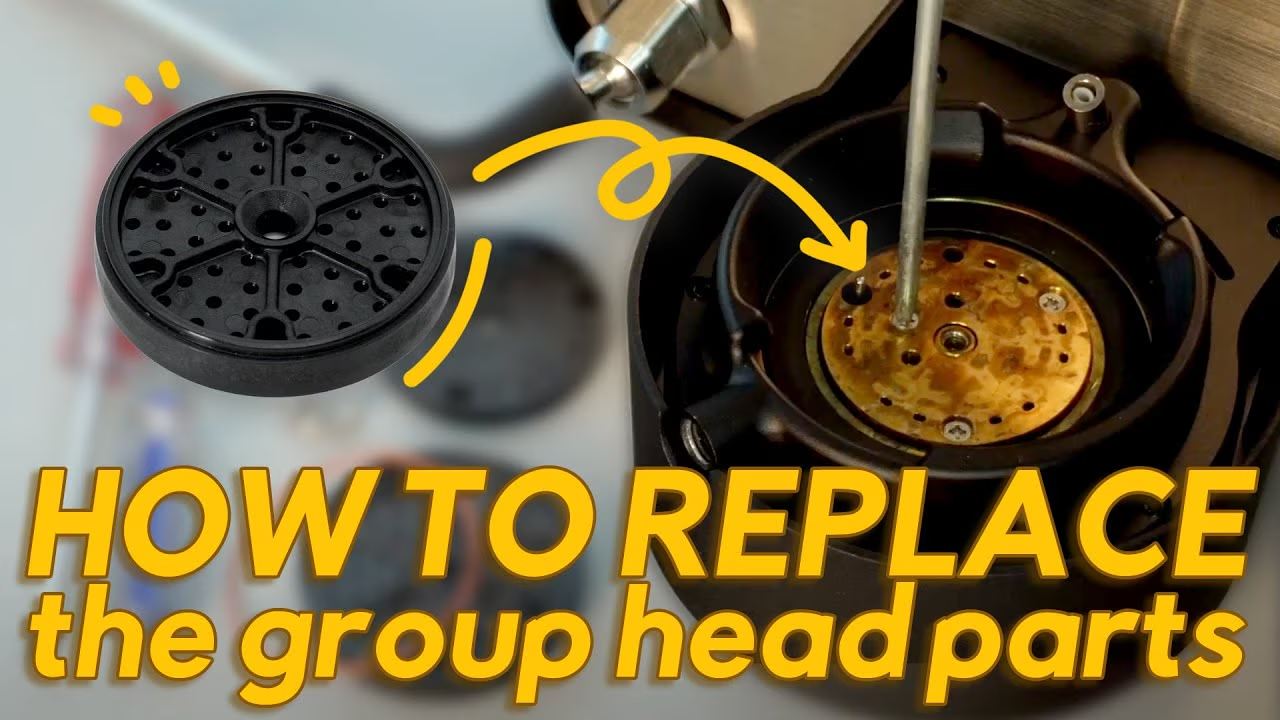
5.4. How to replace the v2 group head parts
Here is an easy-to-follow guide on how to upgrade the group head parts on your Decent Espresso machine. This process swaps out your older, tarnish-prone brass components for the new upgraded kit and converts the system to easy-to-use Torx screws.
Tools needed
Step 1: Disassemble the old parts
Step 2: Install the upgraded upper block
Step 3: Install the shower holder & screen
Tip for Future Cleaning
Once this upgrade is complete, future maintenance is much faster. You can follow these exact same steps in reverse using your new Torx screwdrivers to quickly pull the group head apart, clean off coffee oils, and snap it back together in less than a minute!
Here's a video on how to install the v2 group head parts
6. Troubleshooting: Problem or not?
6.1. Noisy startup during winter
Decent users who experience winter or cold mornings may experience a noisier startup when it's cold.
You will hear the vibe pumps running and you might also hear a tinkling sound of water splashing back into the water tank.
Have no fear, what's going on is that if the water temperature is below 20°C (68°F) the decent espresso machine might choose to circulate the water in the water tank through the hot water heater in order to bring up its temperature.
There is a limited amount of electric power available to heat water when you are making an espresso, and if the water is quite cold, we might not be able to hit the flow rate and temperature that you wanted. That's why we preheat the water slightly if needed.
When the warm weather returns, the decent espresso machine will return to warming up in the morning fairly silently.
Watch this video to hear the sound of the warm-up.

6.2. Noisy pumps due to air bubbles
Air bubbles in the tubes can cause your pumps to be pretty noisy. When we investigated the reason why, we found that a dirty filter in the water uptake tube can be the cause.
You can pull this filter out. It is held in only by a little bit of compression.
Clean it with a citric acid bath and dishwashing soap.
This makes the bubbles vanish and the pumps less noisy.
Note that a dirty intake filter could also give you lower waterflow than you expect, since the pump is moving an air/water mixture, and so our calculations will be off.
This dirty filter could also affect temperature accuracy, since it makes each pump stroke move less water than we expect, and thus our algorithms are getting incorrect data.
On Diaspora, you can find a very short video showing you how to take this filter out.
6.3. Shot ending sound of spontaneous boil
There is another sound that you might think is worrisome, but actually it's fine.
It's water hotter than boiling, being flushed away at the end of a shot. Normally it would be mixed down to under boiling, but since the shot has ended, it's disposed of. That super hot water was under pressure, and thus not boiling. As it is released to atmospheric pressure, it spontaneously turns into steam, and makes that sound.
You can hear this sound in this video

6.4. USB charging issue (tablet does not hold charge or dies)
We've seen USB charging issues every now and then. We've gone through several versions of USB cables over time, from V1 (so many fails…) to V2 and now v3, so USB cable problems are much less common than before. But some issues remain, so we'd like to explain how to trouble shoot USB charging when problems arise.
Note that if the USB charger and the port turn out to work fine, it's possible that another less common issue is at hand.
So here's how to check if the problem is caused by your USB cable (which is the most common cause of tablets dying):
6.4.1. Disclaimer
6.4.2. USB cable
A faulty or damaged USB cable is the most common cause of tablet charging issues. Fortunately, this is very easy to test.
Step 1: External Power Test
Plug the USB cable directly into a wall charger or a computer's USB port, then check the tablet's battery indicator.
Step 2: Evaluating the Results
If the icon is visible but the tablet still seems to be losing power, you will need to check the system battery logs:


If your battery graph continues to decline while plugged in, please take a screenshot of the graph and message us with your photos or videos so we can assist you further.
6.4.3. The USB port of the machine
The USB connector on the machine serves only one purpose: to charge the mounted tablet. The DE1 machine does not have a physical data connection to the tablet; instead, they communicate entirely over Bluetooth.
Important Note: For this test, your espresso machine must be powered ON, but it must NOT be actively operating (do not pull a shot, steam, flush, or dispense hot water).
Step-by-Step Test Procedure
Next Steps
Once the test is underway, refer back to the previous section to evaluate your results:
6.4.4. Tablet USB port
While a faulty USB port on the tablet itself is extremely rare, it is still a technical possibility that should be ruled out.
Test Procedure
Next Steps
Based on your observations, evaluate the results using the same criteria outlined previously:
Once you have completed these tests, you should have a clearer idea of where the issue lies. Please reach out to us and share your findings by sending over a video or scheduling a video call to show us the affected part. From there, we will quickly resolve the issue for you via a replacement or repair!
john created 2026/10/27.