The DE1 App Quickstart Guide

Introduction
A lot of the magic in your Decent Espresso machine comes from the Decent app on your tablet.
This guide will help you learn how to use and customize the original DE1 app.
Getting Started
Start me up
Launching the app on the Decent tablet
After your tablet starts up, you'll see a small icon of a Decent Espresso machine in the center of the screen. Tap the icon to launch the DE1 app. It might take a few seconds to open up.
You'll find more details about setting up your espresso machine for the first time in the Decent Espresso Quickstart Guide.

What's on the default app - an overview
The default view (also known as a "skin") of the DE1 app is known as "Insight." This skin gives you access to all the main features and tools for making espresso, for monitoring and sharing the results, and even cleaning your machine. Later, you'll learn how you can change your default view.
Across the top of the display, you'll see tabs for Flush, Espresso, Steam, and Water. In the center of the screen, you'll see graphs for Pressure, Flow, and Temperature. These graphs will update in real time when you pour an espresso. You'll learn more about them in this guide and through our tutorial videos.
On the right-hand side, you'll see a panel that displays the output of your coffee while it's pouring, and the results when it's finished.
In the lower-right corner, you'll see two buttons. On the left is the "Sleep" button, and on the right is the "Settings" button.

Our DE1 App tutorial video also covers many of these topics.


Quick Tour - the tabs
Let's take a quick look inside each of the four tabs at the top of your screen.

Flush
You probably won't need this tab often, because you can flush your portafilter and group head shower screen directly from a button on top of the group head, without going through the app. However, you can also change the duration of the flush time on this screen.

Espresso
This tab usually loads by default when your tablet wakes up. This is where you can watch the progress of your coffee from the preinfusion through all the stages of flow and pressure, and finally, the amount of coffee (in grams) in your final output.

Steam
Would you like to set an auto-off time when you steam milk? Or set a preheat temperature range or flow rate for it? You can do all this in the Steam tab.
If you rarely steam milk and you just want to save energy, you could disable the steam function in the app. But be careful: if you forget that you disabled it, and a guest asks for a cappuccino, you might wonder why the steam wand won't work.

Water
In the Water tab, you can set the water weight and temperature. Shown here is 95° Celsius, but you can adjust it by clicking on the plus or minus symbols on the top and bottom of the thermometer, or by clicking on the number below the thermometer, which opens up a keypad on the screen.

Quick Tour - the settings
In the lower-right corner of your main screen, tap the Settings button.

Here's what you'll see at the top of the Settings screen:

Presets
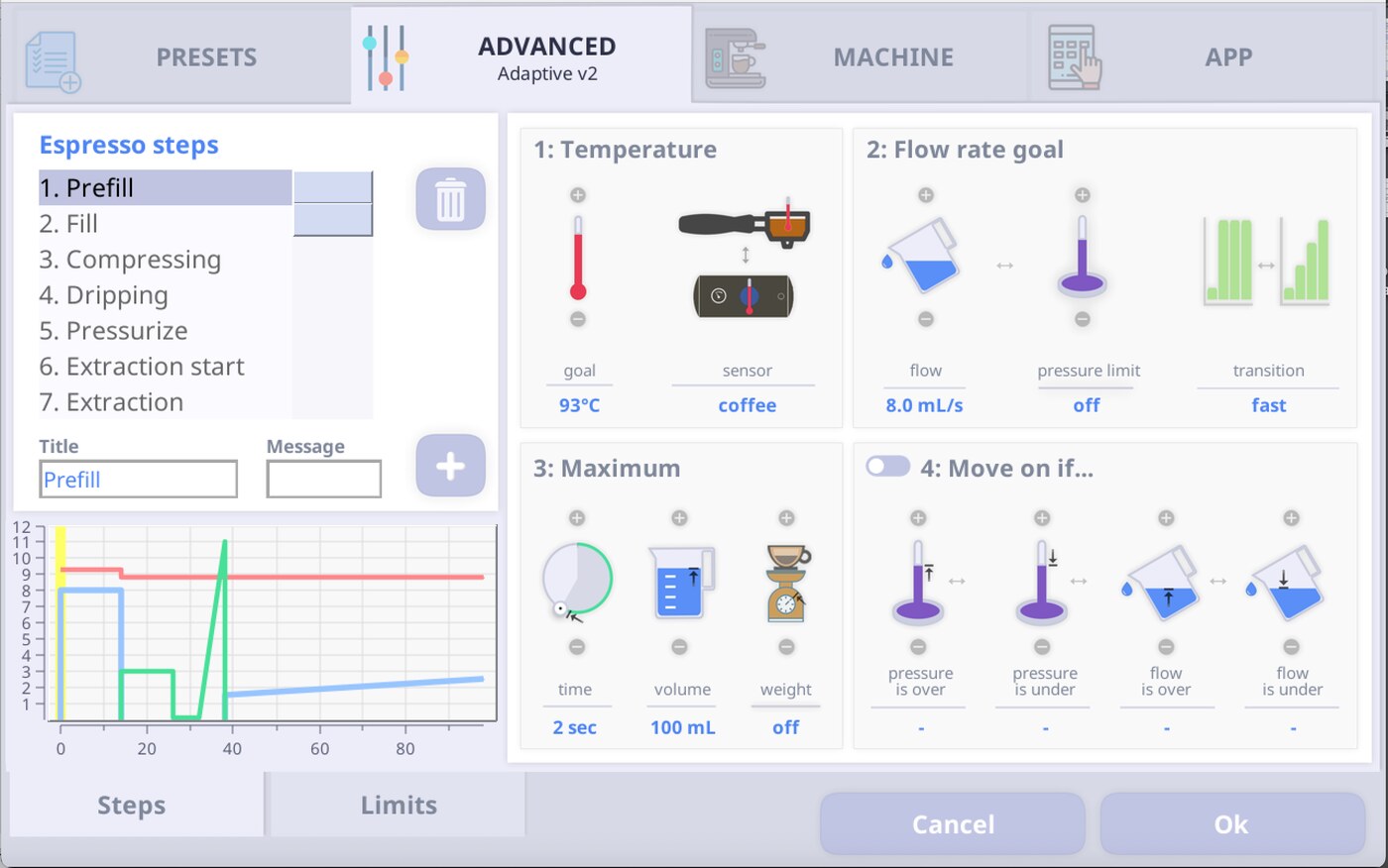
This brings up a list where you choose a pre-configured coffee profile to make espresso or tea. In the example shown here, we chose Adaptive v2, which is an advanced coffee profile. The 2nd tab from the left displays the word "Advanced."

Pressure, Flow, or Advanced
This tab (2nd from left) changes contextually, based on the type of coffee profile that you choose. You can look at the default settings for each profile or make changes to it and customize it to your taste. These changes can include temperature, flow rate, pressure, when you want the extraction to begin, when to stop the pour, and other details.
You'll learn more about how to make those changes later in this guide.
Machine
In this tab, a counter displays the number of coffees made on your machine and the number of times the steam wand was used. You can also confirm the current software version for your Decent app here or update your firmware.
This is where you access your machine's maintenance features, such as cleaning, descaling, calibrating, and preparing your machine for transport. You can also set a preference for the minimum water level in the tank.

App
In the App tab, you can update your DE1 software, adjust your screen brightness, connect a Bluetooth scale, choose a skin (other than the default skin), choose your language, set preferences for Celsius or Fahrenheit, change the font size or screen resolution, enable or disable automatic software updates, turn smart charging on or off, set your preferences for a 24 hour clock versus AM/PM, or decimal / thousands separators (commas versus periods). You can also access the entire QuickStart Guide here with the tap of a button.

Quick tour: the extensions
Extensions
Some extensions in this list are "legacy" extensions from earlier versions of the app, which you might not need. However, you'll probably want to enable the ones listed below. You'll learn more about them later in this guide.

DPx_Screen_Saver
This extension lets you choose an alternate directory for your screen savers if the skin you're using doesn't offer that option already.
Describe Your Espresso (aka "DYE")
You can log details about your beans, roast date, grinder, and extraction after each shot, and plan your next one. After you activate this extension, you can also view your shot history. (You can also find it on GitHub.)
Upload to Visualizer
This extension automatically uploads your shots to the Visualizer.coffee website, enabling you to view and share your shot history through a web browser. When this is enabled, you can also use DYE to download coffee profiles to your machine from other users.

D_Flow_Espresso_Profile
This extension gives you a visual shot editor where you can adjust the flow and pressure in a profile without having to know how to program.
Graphical_Flow_Calibrator
This extension makes it easier to set an appropriate flow calibration setting for your machine. It also allows you to set flow calibration settings for each profile.
For more information, see our chapter on Extensions.

Quick tour: the skins
What's a "skin"?
A skin is a visual interface for your DE1 app, often created by other Decent users. Your DE1 tablet displays the "Insight" skin by default. It's probably a good idea to learn how to use your DE1 with this default user interface first. Later, you might want to experiment with other ones.
Some skins allow you to get more granular with each cup that you brew, but first you should know how to use your DE1 before you start making changes. Some of the most-popular skins include the DsX and Streamline. You'll learn more about how to use them later.
One thing to keep in mind: if you customize some of your coffee preferences in a new skin, they might not affect how your DE1 performs with a different skin. For example, if you change the weight of your coffee grounds from 15g to 18g in one skin, and then you switch to another skin, that 18g setting might not transfer over.


Switching skins
You can select and change the skin for your DE1 app in the App tab. It's easy to switch to another skin — it's simply a matter of personal taste. You'll need to restart the app to apply the changes.
Decent is evolving towards the Streamline skin, which you'll learn more about here. It's called "Streamline" because all the basic functions are on one page, you can set five of your favorite profiles as buttons on the top of the page, and you can adjust the coffee output directly with the "Drink" button in the left-hand column.


Basic coffee making
Making an espresso with a DE1 profile
How to choose a profile
The DE1 app includes several "presets," which we call coffee "profiles." To access them, tap the Settings button in the lower-right corner of your tablet screen.
Tap the top-left Presets tab to see a list of coffee profiles. If this is your first time, the Default profile might already be selected. You can tap through the list and look at the descriptions. Tap the "eye" icon to see additional (hidden) profile options. Click "OK" to confirm a profile. To go back to the previously saved profile, tap "Cancel."
Everyone has their own coffee preferences. And luckily, the variety of coffee profiles on the DE1 caters to many tastes and beans. You can review the basics for each preset on pages 30-32 in the QuickStart Guide.

Pressure, Flow, Advanced: the classifications for each profile
Contextual tabs, based on your selected profile
When you select a coffee profile from the "Load a preset" list, you'll see that the corresponding tab at the top of the screen changes contextually to show its category/classification, based on the profile's name and characteristics. These three categories are called "Pressure," "Flow," and "Advanced."
Tapping on this tab opens an editor, where you can look at the settings for your coffee profile or make adjustments to it. If you do make changes to a profile, the profile name will display an asterisk after it (*), indicating that it's been altered, but the changes haven't been saved yet.
However, when you start using your DE1, we recommend that you simply observe the settings. Don't make any changes to them until you get more experience and confidence as a barista.

The three categories of coffee profiles
The DE1 app offers three broad categories of profiles: Pressure, Flow, and Advanced. Every coffee profile on the machine falls into one of those categories.
In the chart on the following page, we've made an overview for all the coffee presets on the DE1, including their type (classification) and performance goals.


Coffee profiles at a glance
| Profile name | Profile type | Goal | Notes |
|---|---|---|---|
| 80's Espresso | Advanced | Straight shots with medium to dark roasts, low bitterness | Low (82°C) and declining temperature greatly reduces bitterness |
| Adaptive v2 | Advanced | Incorporates “best practice” features from several other profiles into one profile | It's “adaptive” because it adjusts the flow rate during extraction in accordance with the grind size |
| Best overall pressure profile | Pressure | Simple pressure profile | Different from “Default” in that it has slightly slower flow for preinfusion, and uses the flow limiter |
| Blooming Espresso | Advanced | High extraction yield and high clarity, with traditional espresso grinders, for light roasts | Avoid grinding too fine because the pour is flow controlled (with a pressure limit). Grind so that the pressure peaks at roughly 6-9 bar |
| Classic Italian Espresso | Pressure | Imitates the espresso style in the majority of cafes around the world. | Flat 9 bar profile. Very simple, but less forgiving than other profiles. |
| Cremina Lever Machine | Advanced | Thick, slow flowing “lever” shot | Emulates a manual lever machine |
| Default | Pressure | Simple pressure profile | Slight temperature decline, no flow limiter |
| Extractamundo dos! | Advanced | High clarity shots of lightly roasted coffee with low bitterness | A “turbo” profile, Ideal for “big flat” grinders |
| Rao Allongé | Flow | 1:5 “allongé” shot that aims for high extraction and clarity with light roasts, but in a more diluted format | Grind so that the pressure peaks no higher than 8-9 bar. A bit tricky to dial in, but worth it |
| Traditional lever machine | Pressure | Emulates the steep pressure decline in the pour phase of a lever shot | Similar to “Default” and “Best Overall,” but will result in longer shots due to the steep pressure decline |
| TurboBloom | Advanced | High clarity shots of lightly roasted coffee with low bitterness | This profile has a bloom step and it eventually morphed into “Extractamundo dos!” |
| TurboTurbo | Advanced | High clarity shots of lightly roasted coffee with low bitterness | A version of a turbo profile without a bloom step |
Pressure profiles
Pressure profiles are very similar to traditional espresso machines in terms of how the shot is controlled. They're some of the most straightforward profiles to use. In these profiles, the pressure is controlled by the machine, and the flow rate is what results from that pressure interacting with the coffee puck.
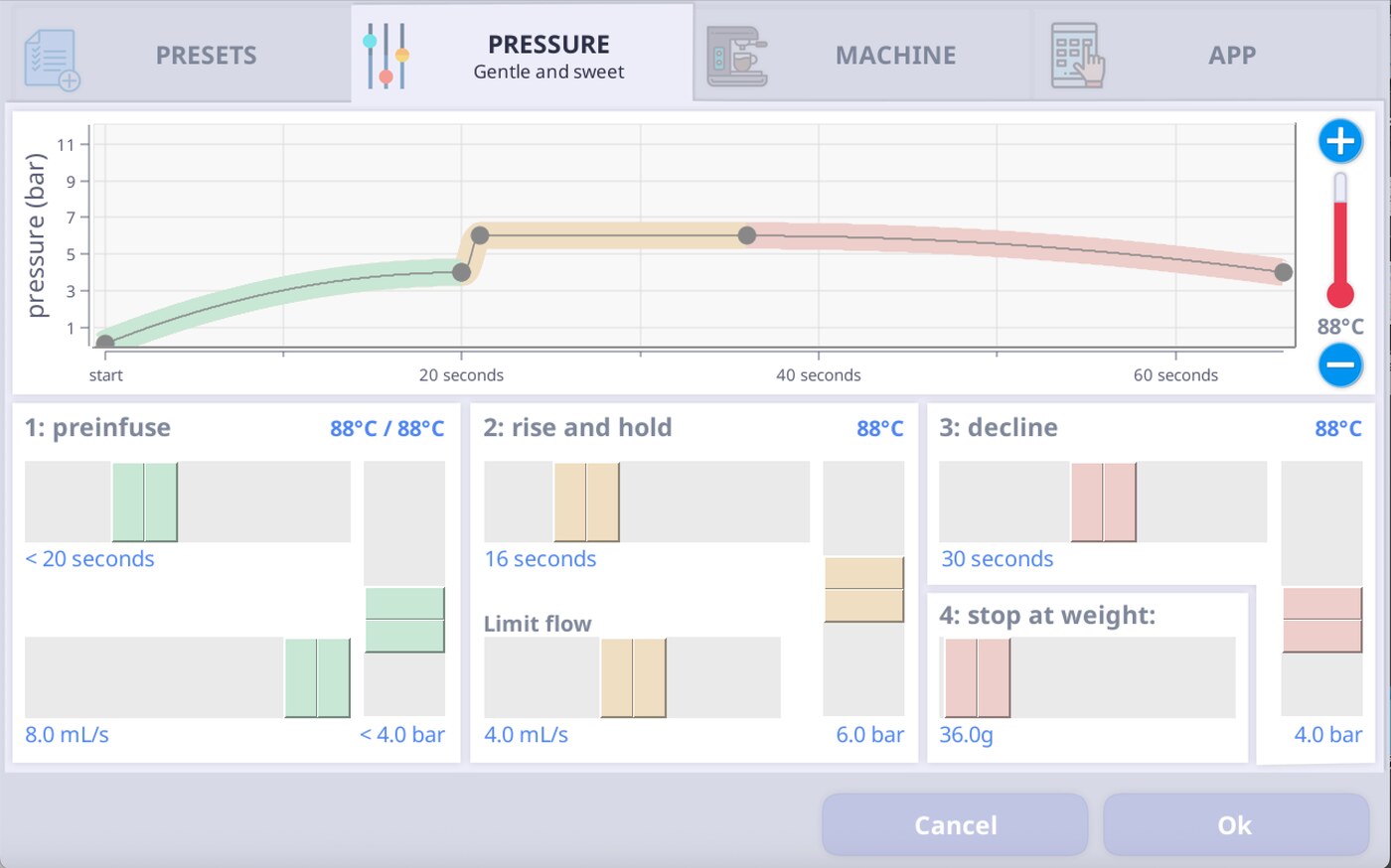
Let's take a look at the Settings page for the "Default" profile, which opens in the pressure profile editor:
Here's how the Pressure profile works:
The "1: preinfuse" step controls the preinfusion phase of the extraction, where the machine fills the basket with water and starts building pressure.
The settings here mean that the machine will pump water at a constant 4mL/s for up to 20 seconds, or until the pressure sensor reads anything over 4 bar. The machine starts this phase with a "Preinfusion Boost step" of 90° C for 2 seconds, and finishes it with a temperature target of 88° C.


Many of the included profiles are set by default to end the preinfusion step when the machine reads a pressure greater than 4 bar. This is because as water gets pumped into the basket, there will be a point where the puck starts to increasingly resist the incoming flow as the coffee begins to extract.
When this starts to happen, it happens very quickly. If the machine continues to pump water at 4mL/s, the pressure will likely overshoot the profile's pressure goal within a few seconds (reaching 12-14 bar), and this very high pressure could negatively affect the cup quality.
The solution? By telling the machine to end the preinfusion phase of the profile when it reads 4 bar, we instruct the machine to move on to the next step in accordance with what's happening in the puck. This makes the machine more consistent, and it also allows the same profile to work with multiple dose sizes.

The "2: rise and hold" phase is a short, pressure-controlled step that brings the pressure in the basket up to the maximum pressure in the profile (8.6 bar in this case), and holds it there for four seconds.
In the "rise and hold" section of the Pressure profile editor, you can also activate or adjust the flow limiter. "Limit Flow" can automatically reduce the pressure if the flow rate gets too high. As you can see in this Default profile, it's disabled by default.
The "3: decline" step sets how long it will take for the pressure to decline, and to what minimum pressure. In this case, the pressure will drop from 8.6 bar (from the previous step) to 6 bar over the course of 35 seconds.
The "4: stop at pour" step ends the shot when your machine reaches a defined target volume for the shot.
Or, if you connect a Bluetooth scale, this section will display as "4: stop at weight," and it will end the shot when your coffee cup reaches a predefined target weight on the scale.


Flow profiles
Flow profiles are essentially backwards from Pressure profiles.
In a Pressure profile, the machine sets the pressure, and the flow rate is whatever results from the puck experiencing that pressure. Whereas in a Flow profile, the machine sets the flow rate, and the pressure is whatever results from the puck experiencing that flow rate.
Benefits of a Flow profile versus a Pressure profile
Because of the physics of how pressure and flow interact in the coffee puck, Flow profiles are trickier to dial in than Pressure profiles. This is because small changes in grind size can result in very large changes in pressure.
Despite this challenge, Flow profiles offer some key advantages. One benefit is that Flow profiles are a little more resistant to channeling than Pressure profiles.
In a Pressure profile, if a channel suddenly opens up in the puck, the machine tries to maintain pressure. It will increase the flow rate slightly, and this could make the channel worse.
However, in a Flow profile, the machine will maintain the current flow rate and slightly reduce the pressure, thereby reducing the impact of the channel.
Another benefit is that if the grind is too coarse, the shot will still flow at the set flow rate and pour in the same amount of time — but at a lower pressure — rather than flowing faster at the same pressure. This can save what could have been a failed "gusher" shot.
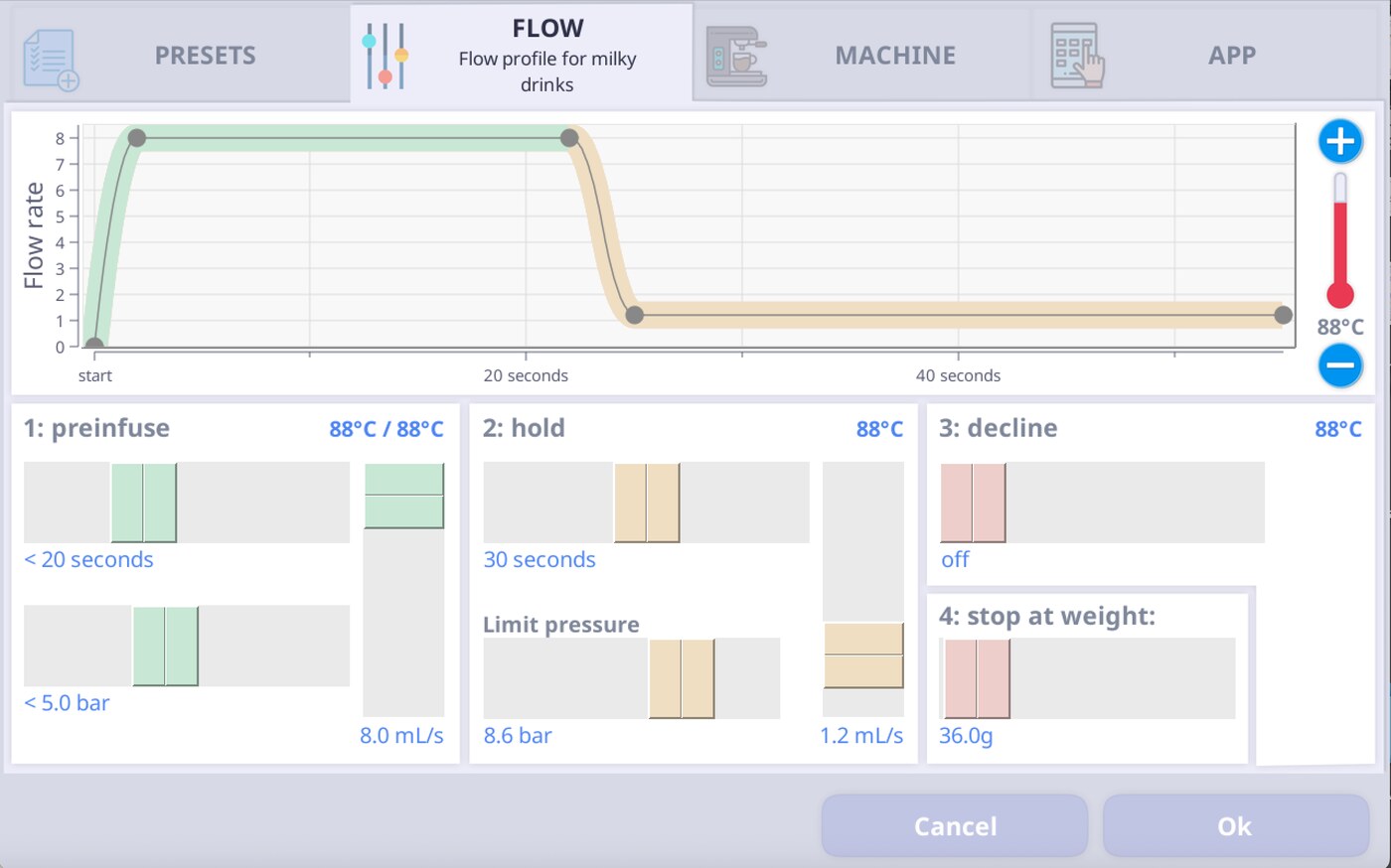
Here's the "Flow profile for the straight espresso" as viewed in the Flow profile editor >>

The "1: preinfuse" step functions just like the preinfusion step in the "Default" profile, except that in this Flow profile, the preinfusion step exits at 5 bar pressure instead of 4 bar. This is simply so that the profile has an easier time reaching the target pressure range quickly.
In the Flow profile, the second step is a flow-controlled step at 2 mL/s. So the machine will only pump water at 2 mL/s during that step. Therefore it may take a little bit longer for the pressure to rise to the target pressure for the shot, which changes the extraction compared to "Default."
This is in contrast to "Default," where the second step is pressure controlled, so the machine pushes as much water into the basket as it needs to reach that pressure.

The "2: hold" step maintains a steady flow rate of 2 mL/s unless the pressure reaches the "Limit pressure," which in this example is set to 8.6 bar.
If it reaches the "Limit pressure" setting, the limiter will reduce the flow rate to keep the pressure from rising too high. Otherwise, the flow rate stays at 2 mL/s.
The "3: decline" step isn't used in this profile, so it's set to "off," because the goal is to hold the flow rate at a constant value rather than change to another value over a set period of time.
The "4: stop at pour" step (or "stop at weight" if you connect a Bluetooth scale) stops the shot at your desired target volume.


Advanced profiles
Advanced profiles can have any sequence of pressure-controlled or flow-controlled steps, while offering a much wider range of other settings for each step. They open up a much greater range of the machine's capabilities compared to profiles created with the Pressure or Flow profile editors. The overwhelming majority of community-created profiles are Advanced profiles for this reason.
Just because a profile is an "Advanced" profile doesn't mean it's hard to use or only for advanced users! Some of the most forgiving and user-friendly profiles are Advanced profiles, like "Extractamundo Dos!" and "Adaptive v2."

This is because Advanced profiles can be programmed to respond to what's actually happening inside the puck to a much greater degree than with the Pressure or Flow profile editors. This can also make dialing-in a much more forgiving process, while also making the best shots better.
It's possible to make both Pressure and Flow profiles with the Advanced profile editor—as well as profiles that are somewhere in-between—by using the Limiter function.
As far as the machine is concerned, all profiles are actually Advanced profiles. You can open up any profile in the Advanced profile editor (select the profile -> tap the "+" icon -> select "advanced") to see what's under the hood!
Advanced profile: Extractamundo Dos!
Let's look at the settings for "Extractamundo Dos!," a very popular Advanced profile for light roasts, especially if you have a large, flat-burr grinder.
The "1. preinfusion start" and "2. preinfusion" steps begin filling the basket with water. These steps are set with a pressure goal of 8 bar, which it will never reach. This is a way to force the machine to pump water as fast as it's capable of doing. And that might be slightly more than 8mL/s on some machines. The machine should dispense water as fast as possible because this profile was designed for a coarser grind size.
This step ends when the pressure reaches 4.5 bar. In actual use, neither the 20-second time limit setting nor the 100mL volume limit are likely to end the shot. At this point, there might be a little bit of coffee dripping from the bottom of the basket, indicating that the puck has been fully exposed to water.


The "3. dynamic bloom" step "blooms" the coffee by telling the machine to not pump any more water into the basket, while keeping the flush valve closed.* This step is "dynamic" because it's likely to end when the pressure in the basket drops from the peak pressure created by the preinfusion steps, and not at the maximum time limit setting of 40 seconds. There will be some degree of overshoot past 4.5 bar down to 2.2 bar.
By setting this step to end based on the current pressure in the basket, the bloom step effectively ends based on how much the puck is currently resisting pressure. Because of this, the puck's resistance should be more consistent when it enters the next step, so the profile will function as intended over a wider range of grind settings.

* When the flow goal is set to 0.0mL/s, the machine will keep the flush valve closed. But if the pressure goal is set to 0.0 bar, the firmware takes this setting very seriously, and it will open the flush valve to achieve 0.0 bar.
The longer the puck is exposed to water during the preinfusion phase (before the pour phase starts), the less the puck will resist pressure during the pour phase. If the grind is too fine with Extractamundo Dos!, the bloom step will last for a longer time, because a finer grind resists the pressure during the bloom more than a coarser grind. But when the pour phase starts, the puck has already been exposed to water for a longer period of time, and it will resist pressure less than if it had a shorter bloom.
So if you grind "too fine" with a profile like this one, the flow rate during the pour will be somewhat slower than it would be otherwise, but not nearly as slow as it would be without the dynamic bloom. This makes the profile much more forgiving.
Also, the dynamic bloom step is set to a lower temperature than the steps on either side of it. This prevents the grouphead heater from coming on and heating the group during the bloom step, which would counteract the intended decline in temperature.


The "4. 6 bar" step is the entire pour phase of this profile. This step has a pressure goal of 6 bar, but because of the flow limiter settings, this step is unlikely to actually reach 6 bar. Typically, this step will see flow rates of 2-4 mL/s, and pressures of 3-5 bar.
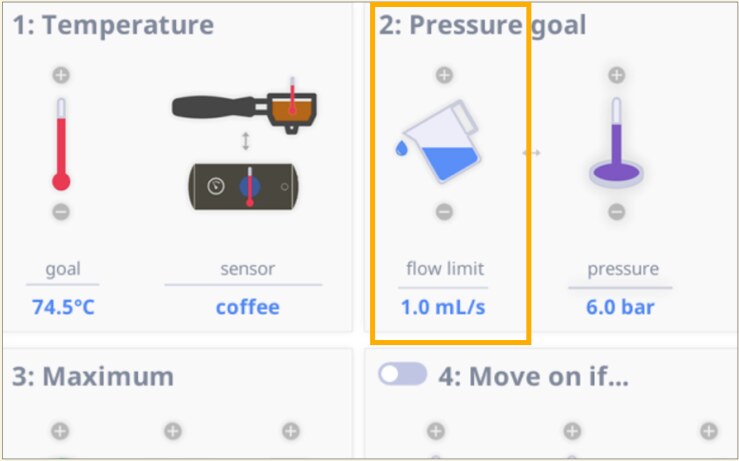
Although the "Flow limit" under Step 2 (Pressure goal) shows 1 mL/s, the maximum flow rate in this phase is actually 4 mL/s. Here's why:
The machine is doing a calculation based on your settings.
The first setting: tap Flow limit, which opens up a Flow Limit settings page. Here, it's set to 1 mL/s.
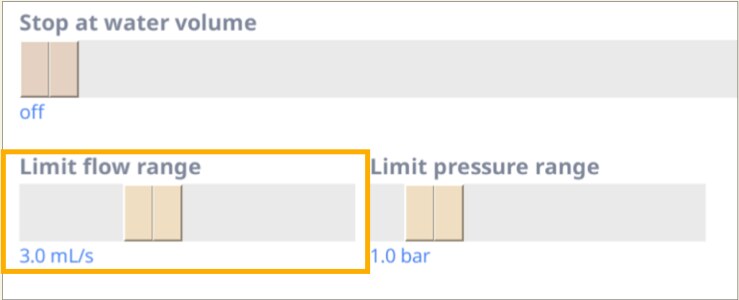
The second setting: press the Limits tab (in the bottom-left corner of the page), and you'll see the "Limit flow range" slider. Here, it's set to 3 mL/s (the default is actually 0.6 mL/s). The calculation for the actual flow rate cap comes from combining the values in the "Flow limit" and the "Limit flow range" settings. So in this case, 1 mL/s + 3 mL/s = 4 mL/s maximum.


This is how the system works in practice. The flow limit (essentially, a threshold) is set at 1 mL/s in this step. When the flow rate is still below this number, the machine will simply target the 6-bar pressure goal, and it could happen quite fast and aggressively.
After the flow rate gets above 1 mL/s, the "Limit flow range" setting comes into play. Between 1 mL/s and 4 mL/s, the flow-rate increase will be gentler than the previous phase. This prevents the pressure from overshooting the target, which causes oscillations.
To compare, if we set the "Limit flow range" slider to 0 mL/s and the "flow limit" (the threshold) to 4 mL/s, it would still achieve a 4 mL/s maximum flow rate. However, if you rely heavily on a smaller limit range, it makes the limiter respond faster when the pressure or the flow approach their maximum rates. If the limiter is forced to respond very quickly, it's more prone to oscillations. We recommend that you don't use settings below the default 0.6 mL/s and 0.6 bar limit ranges.
Again, while this step is called '6 bars,' the pressure will most likely be around 3-5 bars. The profile will try to achieve 6 bars, but because the flow-rate increase is very gentle, the pressure may not reach 6 bars to begin with, and it will still decrease as the shot progresses.
What do the lines mean?
Green line - pressure
Blue line - water flow
Brown line - scale flow (coffee going into cup)
Red line - temperature
With a very coarse grind size, the flow rate hits the ceiling of 4 mL/s very soon. Pressure does not reach 6 bars since flow rate can't go any higher. It's practically working as a 4 mL/s flow profile during this phase.

Here, the pressure climbs to 5 bars and the profile is set to aim for 6, which means the flow rate increases in an attempt to increase pressure. However, the flow rate isn't high enough to increase or even sustain the current pressure, and the pressure drops. This is an intended result. While the flow rate is still climbing, it's now in the range that's controlled by the 'limit flow range' slider (between 1 mL/s and 4 mL/s). So it increases gently, even if the pressure goal isn't reached.

A closer look at Extractamundo Dos!
"Extractamundo dos!" is what's known as a "turbo profile." And turbo shots address an issue that can happen when you make espresso with large, flat-burr grinders. It started to become popular after the publication of "Systematically Improving Espresso: Insights from Mathematical Modeling and Experiment" by Michael Cameron, et al., in the journal "Matter."
This paper argues that, especially with large flat burr grinders, you might actually extract more from the coffee by grinding coarser. This happens because when you grind the beans very fine, the flow of water through the puck can be especially uneven, and this decreases the efficiency of extraction. However, the coffee that's preferentially extracted by this uneven flow gets extracted very quickly.
GRINDER TYPE: Large Flat Burr
Extractamundo dos! is the ideal coffee profile for this type of grinder.
GRINDER TYPE: Conical Burr
With other grinders, you should still grind coarser for turbo shots like Extractamundo dos! to get better-tasting shots with a faster flow rate.
This means that in the coffee puck, we have two opposing effects engaging in a tug-of-war. At a certain point, the grind is so fine that the uneven flow wins, and extraction decreases despite the fine grind. Espresso made with grind settings finer than this tipping point tend to taste "blended," ristretto-like, and astringent, whereas espresso made with coarser grind settings tend to have more clarity and sweetness.
Particularly with large flat-burr grinders, this tipping point is relatively coarse compared to traditional espresso shots. However, you should probably grind coarser for this profile with any grinder. Therefore, the best-tasting shots tend to be ones that flow quickly, often in 10-20 seconds, and with flow rates during the pour phase frequently around 3-6 mL/s.
Ideal goal for Extractamundo Dos!:
Flow: 10-20 seconds
Flow rate during the pour phase: 3-6 mL/s
Enabling & using extensions
About extensions
What are the extensions?
Decent's extensions are basically helpful software additions created by Decent or by Decent users. They're optional, and like browser extensions, you enable them to "extend" your machine's capabilities.
Where do I find the extensions?
You'll find all the extensions by tapping Settings > App > Extensions. Then you can scroll through a list of the available extensions. We'll cover some of the most-popular ones here. They can help you finesse your coffee-making skills, track your shots, and share your results with a community of coffee enthusiasts.

DYE (Describe Your Espresso)
What does the DYE extension do, and where do I get it?
The DYE extension is a collection of logs on your machine about your espresso shots. You can enter the type of bean, the roast date, the flavor profile, what grinder and grind setting you used, and other data. DYE works in tandem with a service called "Visualizer."
Your espresso machine automatically tracks details like pressure, flow, and temperature. DYE helps you log additional external details that your machine doesn't track. You can tap forwards and backwards to view your shot history or plan your next shot. You don't need to download this extension separately. It comes bundled in the DE1 app since version 1.34.2.
Another benefit of enabling the DYE extension is that it makes it easier to participate in the Visualizer community and share (or download) your favorite espresso shots with everyone else. You'll learn about that in this guide.
This video tutorial shows you how to enable and use the Describe Your Espresso extension.

Enabling DYE
To enable Describe Your Espresso, go to Settings > App tab > Extensions.
You'll see a list of available extensions. Just tick the "Describe Your Espresso" checkbox. When you save the changes, your DE1 will prompt you to restart the app to activate the updates.


In the Insight skin, you'll see an image of a coffee cup on the main screen. Tap it to enter the DYE extension.
In the Streamline skin, you'll see a button for DYE in the row of buttons at the top of the main screen. Just tap it.


Navigating DYE
Inside the DYE interface, use the arrows in the upper-left corner to navigate backwards and forwards through your records.
The image shown here displays the last shot you made. Some of the fields might update automatically from one shot to the next, but you can also edit them manually after the shot.
On the upper right-hand side of the screen, the bulleted-list icon brings you to your shot history at a glance.

You can also tap the binoculars icon on the upper right to get the "Select the shot to describe" page, where you can search your saved shots by profile or by the bean type, and enter more details. This interface might be helpful to you after you have a lot of saved shots with DYE.


Before you go any further with DYE....
To get the most benefit from the DYE extension, you'll want to set up an account first on the Visualizer website. You can try a free account, which only saves your shots for a limited amount of time. But if you really enjoy Visualizer, you can set up a paid account for about $5 USD per month. Then you can review and analyze all your shots, and see the shots and get custom profiles from everyone else in the Visualizer community.
So let's walk through how to set up a Visualizer account online, and finish the setup to connect your Decent machine to it.
Visualizer
What is Visualizer?
Visualizer is a website and community for logging and sharing the details of your shots on your DE1. While it's not an extension by itself, it integrates with the DE1 app through our DE1 extensions so that you can auto-upload shots to the website and download other profiles. It's an excellent way to discover and try new coffee profiles.
First, you need to set up an account on the Visualizer website. You'll get the first 7 days free. After that, you can either upgrade to a paid account, or use the limited features in your free account. Then you'll need to set up your login details on your DE1.

Watch our YouTube tutorial!

How to enable Upload to Visualizer on your DE1 tablet


What to expect and how to view your results in Visualizer
When you're signed into the Visualizer website, you'll see two views: "Shots" (these are your espresso shots), and "Community" (these are the shots from all the Visualizer users who share their results).
You can filter the Community shots by criteria like the coffee profile name, the type of bean, the username, or even the satisfaction rating for each shot.

Examining a shot in Visualizer
After your shot data gets uploaded to Visualizer, you can take a closer look at it on the Visualizer website. Select a shot from the list in your account and click it open. There, you can rate your overall satisfaction with the coffee drink on a scale of 0 to 100, and type in more details about it. This is much easier to do from your computer into a web browser than typing on the Android tablet.
Near the top of every record, you'll see a row of buttons. From left to right:


You can also examine the graphs that reveal the progress and output of each shot. The graph is interactive: as you roll your cursor over the lines in the chart, you can see the actual results moment-by-moment, along with the intended goal.
In addition, you can download all the shot data as a .csv file and look at moment-by-moment details in a spreadsheet.


How to download profiles to your machine from Visualizer
If you see an interesting new coffee profile in Visualizer, you can download it and install it on your DE1.
The easiest way to install a new profile is through the DYE (Describe Your Espresso) extension. This method will automatically install the new profile in the correct directory on your DE1 tablet. We'll explain how to do that in this guide.
Or, if you already know how to transfer files from your computer to an Android tablet, you could download the file from the website to your computer, and then transfer it to the /de1plus/profiles directory on the tablet.
Mac users might need to use an app like "MacDroid" to mount the Android, and we recommend that you use a USB cable that matches the ports on your Android and your Mac, without using a plug adapter or a USB hub.
Downloading a profile using Visualizer is usually quicker and easier though, so let's look at that first.

Downloading a profile through the DYE extension (recommended)


You can also choose (or exclude) the data you want to import from the profile by checking or unchecking the boxes for Beans, Ratio, Grinder, and Profile. Be aware that if all the boxes are checked, your next shot will populate with the same bean type, ratio of grounds to liquid output, grinder model, and grind setting as the original profile creator. But you can also edit them.

Downloading a profile directly to your computer
Using this method, download the profile to your computer first, then connect your Android to transfer the file into the profiles directory.
To download a profile from Visualizer
To install profiles on your tablet:

It's easier to transfer the .tcl file to the /de1plus/profiles/ directory through your computer's interface rather than downloading it to your tablet from Google Drive, because then you still have to move it to the correct subdirectory on your tablet. But it's even easier to use the DYE extension to do all that work for you.
If you use a Mac, you'll probably need a third-party app to mount your Android on the Mac desktop. MacDroid works pretty well.
The MacDroid app mounts an Android on the desktop as a MacDroid volume, where you can easily drag the downloaded profile into the Android's /de1plus/profiles/ directory.

Sharing your profile with other users
This might seem obvious, but you can share the URL for each shot with other users in the Visualizer community, or with other DE1 users in the Decent Diaspora.
Just copy the URL for a shot, and you can share it with other users and get feedback within Visualizer or in the Decent forums.


Graphical Flow Calibrator
What problem does flow calibration solve?
Espresso machines that show you flow data are giving you a measurement of how much water is passing through the coffee puck during a shot.
Some machines use physical flow meters: little sensors that measure water volume directly as it moves through the machine. These devices can be fine in high-end commercial equipment, but they have some important limitations: they can be expensive, hard to install in tight spaces, and often struggle to measure low-flow rates accurately without specialized calibration equipment or lab-grade tools.
In many industries, physically calibrating a flow meter to give highly accurate results can cost hundreds or even thousands of dollars. And the calibration often needs to be repeated periodically to stay accurate.

In designing the DE1, we faced an issue with how to measure the flow rate. Commercial flow meters that could fit inside the machine weren't responsive enough to give reliably useful feedback in our shot graphs. Specifically, the time-domain resolution wasn't high enough. And flow meters that are responsive enough are far too big and expensive to fit inside the machine.
Our solution was to create a software model of the pumps and the machine and use this detailed model to generate the flow-rate data. This allows us to show flow-rate data that's precise, repeatable, and with fine-grained detail, even at low-flow rates that are challenging for mechanical flow meters. As a result, you can see rapid changes in flow rate during a shot.
Do I need this?
Not necessarily. You may want to use the GFC if you:
If you're happy with how your coffee tastes and don't use flow data heavily, you can safely ignore this feature.
True precision might be region-specific
However, there's a catch: the software model's accuracy depends on local electrical conditions such as voltage and frequency, which can vary by country and region. That means a given machine's flow estimation could be slightly different in the U.S. than in Europe or Japan, unless it's tuned for those conditions.
When we ship a DE1, we set the flow calibration value based on a table of voltages and frequencies expected for the electrical grids in various countries. And while this initial setting should be reasonably accurate, you might still need further calibration.
Decent included the Graphical Flow Calibrator in the app to bridge this gap between a model and real-world behavior. It lets you fine-tune how the machine's estimated flow aligns with the actual flow measured on a scale or other reference without touching the underlying brewing parameters.
Global calibration:
Per-profile calibration:
Sometimes calibration is profile-dependent
Additionally, the ideal flow calibration value can be somewhat profile-dependent. Profiles with very low pressures or high flow rates might read less accurately if the machine was calibrated to the typical pressure and flow rates of normal espresso shots. You can set the flow calibration on a per-profile basis with this extension.
The Graphical Flow Calibrator makes the process of adjusting the flow calibration value easier by displaying a preview of a previous shot and what it would look like with different flow calibration values.
Then you can adjust the flow calibration until the machine's reported flow rate matches the mass flow rate that was read by the connected Bluetooth scale.
In the Presets tab, you can adjust the single calibration value for your selected preset by tapping the plus/minus icons directly on this page.

Inside the Graphical Flow Calibrator page
Tapping the "GFC" button takes you to the main interface of the Graphical Flow Calibrator extension. In the main interface, you will see the last shot the machine made, along with some settings.
In order to set the calibration, tap the up or down arrows until the blue line (the machine's reported flow rate) and the brown line (the mass flow that was read by the scale) align.
Increasing the flow calibration (up arrow) will move the blue line up, and decreasing it will move the blue line down. After you've made your adjustments, be sure to tap either the "default" or "profile" buttons to set the global calibration or the calibration for that particular profile.
The Calibrator buttons on this page:


Tweaking the calibration settings
The Calibration pages
We don't recommend changing the calibration settings in most situations. Most Decent owners will never need to change them. But you might encounter a situation where you need to tweak them a little, especially the Flow calibration.
These settings control the water temperature, flow, pressure, heater settings, and more. You'll find them on the Calibration pages (in the Machine settings). These Calibration pages also include some miscellaneous hardware-related settings.

But making these changes should not be taken lightly. In fact, the first thing you'll see when you open the Calibration pages is a warning to alert you that changing these settings can render your machine (temporarily) unusable.
For example, changing the settings for the pressure and temperature calibration can affect how the machine performs during a shot to the extent that you might not be able to make another espresso until you revert to the original settings.
Our advice? Only change those settings if you have a good reason why, and if you know what you're doing. Other settings in these calibration pages are less consequential.

Calibration settings, page one
Temperature and pressure calibration
On the first page of the Calibration screen, you can change the settings for the temperature, pressure, and flow. The app already auto-populated the "goal" temperature or pressure for that profile, and you'll see those goal settings here.
Temperature
The only time you should ever need to adjust the pressure and temperature calibration settings is if you need to replace the pressure sensor or thermocouples in the machine.
If you calibrate the temperature, you'll need to take accurate temperature readings of the water while it's getting dispensed from the group head. The calibration will only be as accurate as your measurement. This is not trivial.

Tools
You won't get an accurate temperature reading by simply dispensing water into a double-walled glass and then taking the temperature of that water. Instead, we recommend that you use a K-type thermocouple wire. You insert the wire into a blind basket that has a small hole drilled into it. We've got directions for how to do that here (in the DE1 manual).
You can also try a similar technique (but with a larger hole) by using a ThermoWorks Thermapen. Ideally, use the Thermapen ONE due to its IP67 waterproof rating. This is a popular choice for calibration due to its NIST-traceable standards. (NIST is the National Institute of Standards and Technology in the USA.)

The "Measured" field
After you measure the water temperature, enter the number in the "Measured" field on the Calibration screen. The app takes the difference between your measurement and the current goal temperature and calculates a "calibration coefficient" from that. Basically, the app updates its own internal correction. All you have to do is measure the temperature and enter the number. The app does the rest.
However, calibrating temperature is an iterative process. You might not achieve your goal on the first try. And with each round, the app will get closer and closer to the correct temperature based on your measurements.
The Decent's internal "calibration coefficient" is displayed in the "Saved" column on the far left. These numbers reflect the correction factor that the machine applies to the raw temperature reading from the relevant sensor. You don't need to calculate these numbers yourself.

As Ray Heasman (our lead engineer) said:
"The first rule of measuring temperature is that your measurement is probably useful, and never right, and probably not what you think it is. The problem is that you're always measuring some weighted average of the thing you want, and the rest of the universe."
Pressure calibration
Pressure calibration uses the same iterative process as temperature calibration, however the measurement process is easier. To measure the machine's pressure, you need a pressure gauge screwed onto a spouted portafilter, and we have directions for that here (in the DE1 manual).
Just like calibrating the water temperature, you enter your pressure measurement into the "Measured" field on the Calibration page, and the app takes the difference between your measurement and the current goal pressure setting, and then calculates a calibration coefficient to adjust the amount of pressure your Decent machine will produce.


Flow calibration
Flow calibration accounts for voltage variation and pressure sensor nonlinearities that might be specific to your precise region.
Because of this variation, this is one calibration setting that we recommend you change, because we can't actually set it exactly right for your specific electrical source before we ship it from the factory.
It might also be helpful to adjust flow calibration on a per-profile basis for profiles that operate well outside of the normal espresso pressure and flow regime, such as "Filter 2" profiles.
The easiest way to set flow calibration is with the Graphical Flow Calibrator extension, which we cover in this guide. In addition, our DE1 manual chapter covers how to set this.
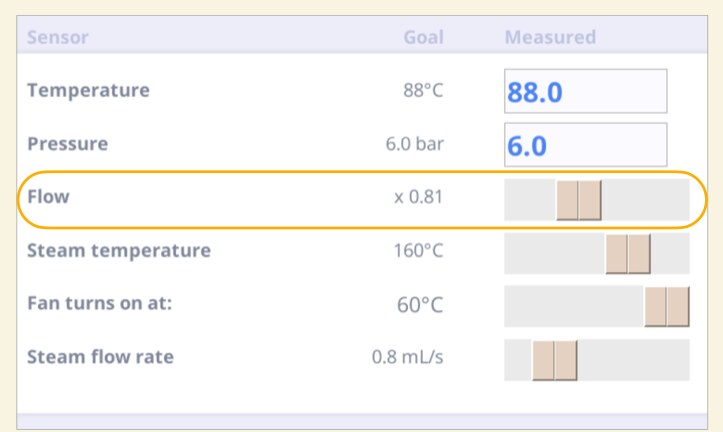
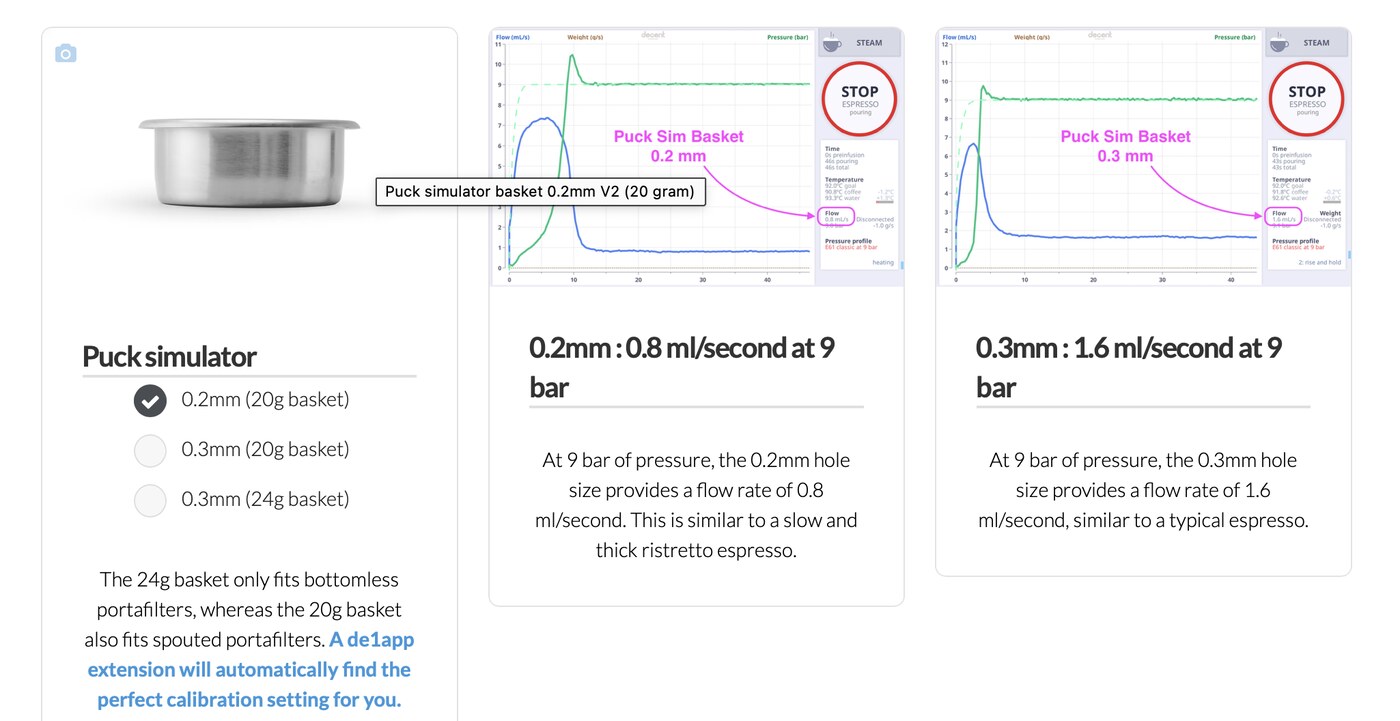
The basic principle is:


Steam temperature, steam flow rate, and fan speed
"Steam temperature" sets the nominal temperature of the steam thermocoil. We recommend that you set it to 160-165°C. Lower temperatures can produce wetter steam. Sliding this slider all the way to the left will turn off the steam thermocoil, which is useful if you don't use the steam function.
"Fan turns on at" sets the temperature (for the DC circuit board inside the DE1) at which the cooling fan will turn on to cool the circuit board down. The lower the setting, the more aggressive the fan will be about cooling the circuit boards. This can prolong component life, at the cost of being somewhat louder. The default setting is 60°C, which is sufficient to protect the components.
"Steam flow rate" sets the base flow rate for the steam function. For DE1PRO and DE1XL models, we recommend between 0.4-1.2 mL/s, with 0.8 mL/s as a happy medium between speed and dry steam. And for the DE1XXL, we recommend between 0.6-1.5 mL/s, with 1 mL/s usually giving the fastest dry steam. Higher flow rates than these may result in wet steam.


Calibration settings, page two
Thermocoil and preheat settings
On page two, you can change settings related to the water thermocoil and the preheat cycles that run before you start a shot. You can also change the time offset for the "stop at weight" feature. Here are the default settings:
Preheat settings
"Heater idle temperature" sets the temperature for the water thermocoil when the DE1 is turned on, but it's not actively being used.
When you start a shot, the DE1 will heat the water thermocoil from this idle temperature up to 110°C. The higher the idle setting, the less the water thermocoil has to heat up before a shot starts. But this is at the cost of higher energy usage when the machine isn't in use. By default, it's set to 99°C.


"Heater warmup flow rate" sets the flow rate for "Preheat-A," which is where the machine heats the water thermocoil up from the idle temperature. You can find more information on this stage, as well as the others, here. The default setting is 2mL/s.
"Heater test time-out" sets how long the DE1 will stay in "Preheat-B" before moving on to start the shot. This preheat stage makes sure that the two-way valve between the manifold and the group head is preheated, which is very important for the temperature stability of the shot.
The default setting for this is one second (1.0). You could set this much higher, and have the DE1 take as much time as it needs to get the temperature just right before the shot starts. This takes only a few seconds in the vast majority of shots, especially if the machine gets used frequently and hasn't had time to cool down since the last shot.


"Heater test flow rate" sets the flow rate for "Preheat-B." In general, it's best to leave this at 4mL/s. If you set it faster than this, you risk cooling the water thermocoil. If you set the flow rate slower than this, the preheat step will just take longer.
At the bottom of this calibration page, you'll see some text that says "Defaults for cafe." Prior to the app's version 1.45 update, two links appeared at the bottom of this page, "Defaults for home" and "Defaults for cafe." The "Home" option was removed because the Heater idle temperature setting (85 degrees) was considered too low for many users. The "cafe" setting (99 degrees) was more optimum.
However, if you live in a higher altitude, the 99-degree setting might be too high for you and you might hear a "gurgling" sound. If this is your situation, we recommend setting the "Heater idle temperature" a bit lower, such as 95 degrees.


In older versions of the app, the first time you loaded this Calibration page, you saw the old "Defaults for home" settings with the "Heater idle temperature" preset to 85 degrees. We're including this image on the right for future reference. It shows these older Home settings.
By tapping the "Defaults for cafe" option, you'll change these older Home settings to a more-optimum level. For example, the "Heater idle temperature" will change to 99 degrees. However, you won't be able to return to the older "Home" settings again unless you manually change them. So use this image as a guide.
In brief: for most of you, the "Defaults for cafe" settings are ideal, with a pre-set 99 degree Celsius Heater idle temperature. On updated versions of the app, it loads by default.
And if you live in a high-elevation area, you should choose the "Defaults for cafe" setting, and then you can manually reduce the "Heater idle temperature" to 95 degrees if you hear a gurgling noise (the sound of water boiling).

"Stop at weight" offset
The "stop at weight offset" adjusts the time compensation for when the machine stops your shot relative to the scale reaching your target shot weight. Since it takes some time for the coffee to fall from the bottom of the basket into your cup, if the shot ended right at the target weight, you would get more coffee in your cup than you asked for.
This slider sets the time, in seconds, when the shot will end in advance of the scale reading your target weight. The higher this setting, the earlier your shot will end relative to your scale reading your target weight.

Calibration settings, page three
Hot water and flush settings
The "Hot water flow rate" sets the maximum flow rate of the hot-water function. When you request hot water from the machine (for example, for tea or an Americano), it will automatically dispense at the fastest flow rate possible while maintaining the appropriate temperature, up to its limit.
The faster the flow rate, the less splashing you'll get with the hot water function in general, so we recommend keeping this at 10mL/s.


"Flush flow rate" sets the flow rate for the flush function for your group head.
"Flush timeout" sets the length of time the flush function will run.
We recommend that you keep the default settings at 6mL/s for 5s. If you set the flush timeout very high – with the flush flow rate above 4mL/s – it can eventually cool the water thermocoil, which can potentially lead to shot consistency issues.


Steam settings and slow start
"Two tap steam stop" changes what happens when you stop the steam function. When you enable this setting and you tap to stop steaming, the machine will start dispensing steam at a very, very slow flow rate — just barely enough to keep positive pressure in the steam wand. It will keep doing this until you hit "stop" again, at which point the machine will completely stop dispensing steam and purge the steam wand. This is the same as when the steam function ends when the timer runs out.
If you turn off the "Two tap steam stop" setting, the machine will simply stop dispensing steam and auto-purge the steam wand when you tap to stop the steam function.
But when this setting is turned on (for two taps), you have some time to clean off the steam tip thoroughly after you tap "stop" the first time. At that point, the machine is still maintaining positive pressure until you tap "stop" again and let the machine purge the steam wand.

The exception is if you only run the steam wand for less than 7 seconds. In that case, the machine assumes that you weren't actually steaming milk, and it will simply end the steam function without the automatic purge.
"Slow start" is intended to address one possible cause of the old "skip first step" bug, in which the first step of a profile is skipped. This setting gives a valve two more seconds of time to open than it would normally need. This can help in those rare cases where this hardware bug appears. A bug fix is underway. We recommend leaving this setting off, unless our tech support staff tells you to enable it.
"Eco steam" keeps the steam thermocoil at 135°C after the machine has been idle for 10 minutes. If you interact with the machine again, the steam thermocoil will warm back up to the idle temperature set in page one, which we discussed earlier. Turning this setting on can reduce energy consumption by 20% compared to when it is off.


The "Refill kit" settings here determine how the machine knows if there's an attached refill kit or not.
When it's set to "auto-detect," the refill kit will be detected when the DE1 powers on. However, if you connect the refill kit afterwards, but you don't power cycle (restart) the DE1, the machine won't detect it yet.
If you set this to "force off" or "force on" manually, it tells the DE1 whether or not the refill kit is installed so the machine doesn't need to detect it.

All about the Streamline skin
What is "Streamline"?
Streamline is a minimalist skin that aims to be clear and easy to use. Unlike Insight, which has dedicated pages for each type of activity, Streamline presents most of the relevant data on a single page. It's the product of John's collaboration with Pulak Bhatnagar, a user interface specialist.
You can also download a version of Streamline through Decaid, Decent's newest application. You can find the latest Decaid builds on GitHub or download Decaid from the Decent website.
In addition to its clean interface, it also gives you buttons for easy access to your five favorite profiles, your Describe Your Espresso metadata, and commonly used settings.


How to activate Streamline
To activate Streamline, go to Settings > App > Skin. Scroll down the list on the left to select "Streamline." You'll be prompted to restart the DE1 app after you select a new skin.

No group head controller? No problem.
If your DE1 doesn't have a Group Head Controller, you'll see a set of buttons on the right side. You can use these on-screen buttons to start the espresso, hot water, flush, and steam functions.

Set your favorite profiles
In Streamline, you can select your top five favorite coffee profiles and switch between them by tapping their button. Below, you can see five profile buttons. Let's say that you want to remove the "Default" profile from your favorites and replace it with a different coffee profile.

Tap and hold the button to remove that profile from your favorites. This leaves an empty button that you can fill with another coffee profile.

Tap and hold on the empty button. This brings up the list of coffee presets. Choose a coffee profile (in this example, "Extractamundo Dos!"), then tap "OK." The new coffee profile will appear inside the button.


To exit the DE1 app or put your machine in Sleep mode:
To exit the app: Press and hold the Sleep button.
To put your machine in Sleep mode: Tap the Sleep button.


If you enable the Describe Your Espresso (DYE) extension, a DYE button appears at the top-right side of the Streamline window. You'll learn more about that extension in this guide.

Zooming in on the chart
Streamline offers a simpler visual mode. You can zoom in and hide the controls on the left and hide the data on the bottom.
Just tap on the chart to cycle between Zoomed and Normal modes.


Understanding the data at the top of the screen
The top line above the chart shows you vital statistics, including the currently loaded profile, whether your DE1 is heating, the current time, your water tank level, and the current weight. If your Bluetooth scale displays a red error message, that probably means it isn't connected. So tap [Reconnect] to pair it again.


When you're in Zoomed mode, it will hide the left-side controls. That left-hand panel contains information about the grind and the dose. However, in Zoomed mode you can still see that hidden information in these two lines:


Enabling the Graphical Flow Calibrator
If you enable the Graphical Flow Calibrator extension, you can easily set a flow calibration setting for each profile you use.


What's in the data chart at the bottom of the screen?
Review your past espresso shots in a chart at the bottom of the screen. You can cycle between them by tapping the arrows under the word HISTORY to navigate back and forth from the oldest to the most-recent espresso.

This data chart organizes your espresso into three stages: preinfusion, extraction, and total.

Temperature is shown as the start and end temperature, but only if it's different between the steps. If the temperature didn't change, only one value is shown.

Flow rate will display the starting -> peak -> ending flow rate, if the peak was different than the end. This data chart organizes your espresso into three stages: preinfusion, extraction, and total.

Pressure will display the starting -> peak -> ending pressure rate, again, if the peak was different from the end.

Editing your Grind, Dose, Drink, and Extraction Ratio
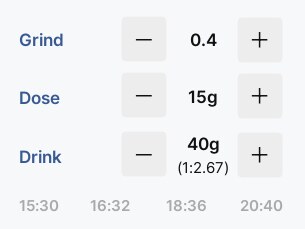
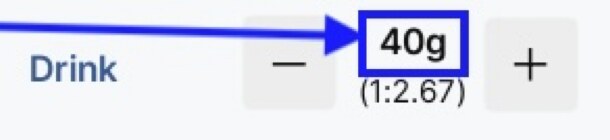
The Grind and Dose settings are informational only – they're not stored in the coffee profile, and they won't alter the profile settings. If you use the DYE (Describe Your Espresso) extension, it has a workflow feature that organizes everything about making a specific drink. The settings here will echo what you selected in DYE.
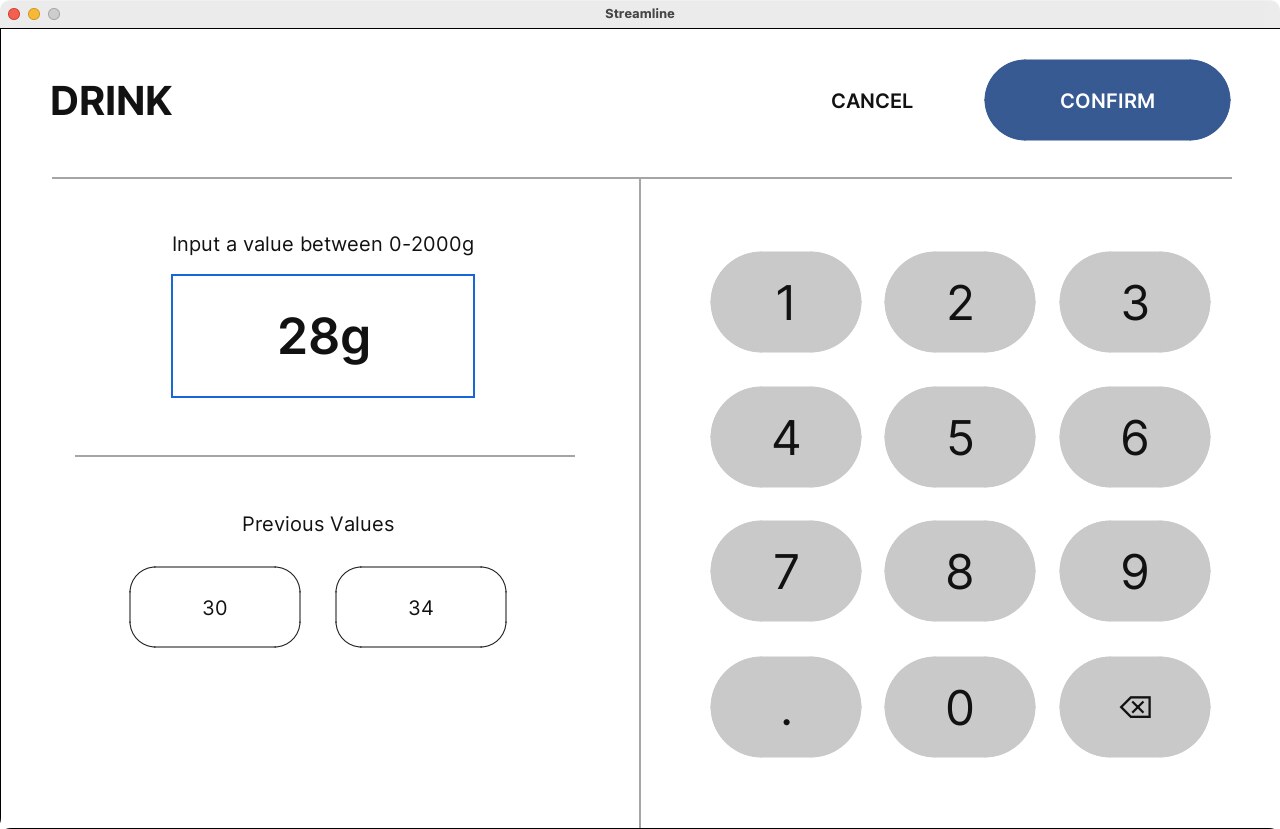
The Drink setting specifies how much espresso you want in your cup. The ratio of Dose:Drink is calculated for you.
You can single-tap any of the light-grey colored presets.
To save your settings as a preset, long-tap the preset you want to save it to. You'll see an animation when you succeed.
You can tap on a number in most parts of Streamline, and it will pull up a full-screen keyboard.
Editing your brew temperature
You can raise or lower your espresso brew temperature with the +/- buttons or enter a specific temperature with the keyboard. Every step will be adjusted to the relative change. For example, if your espresso starts at 92ºC and then drops to 88ºC, and you change the temperature to 90ºC, then the starting and ending temperature will be reduced by -2ºC.
Tap a preset temperature to load it, or tap and hold on a preset temperature to save your current temperature to that preset.

Editing steam time and flow
Useful steam times are suggested in the presets. Tap the Time | Flow label to switch between editing each one.
A steam time of zero will turn the steam heater off. This will lower your electrical consumption.


Editing flush and hot water
You can set or change the flush time, the hot water temperature, and the amount of water volume to dispense.
If you connect a Bluetooth scale, the app will stop the water function based on the data from the scale, which is more accurate.

Why Streamline?
As you can see, one benefit of using Streamline is that you have most of your settings on a single screen, so you can confirm them or change them as needed. It's entirely optional, but you might find yourself using it when you get more experienced with your Decent machine.
More resources
Guides
The Decent Espresso DE1 manual
This is a collection of information that was originally posted in the forums on the Decent Diaspora. It's now online in book form and easily searchable. Covers the tablet, software updates, troubleshooting, and more information about profiles and parameters.
A Decent blog post with lots of resources for a deep dive into the science of making good espresso.
Videos
We have two YouTube channels. Our Decent Espresso Tech channel offers DIY tips on hardware and tutorials about our software.
john created 2026/10/30.